Jobs
Much of what a Flowable engine does happens asynchronously. When a process reaches an async step, waits on a timer, or needs to persist history, the engine creates a job and hands it to an async executor, which runs it in the background. The Jobs view is where you observe that machinery and intervene when a job gets stuck.
Understanding jobs is central to operating Flowable: a backlog of pending jobs means the engine is falling behind, and a job in the deadletter queue means a piece of work has failed permanently and is waiting for a human to decide what to do.
Job types
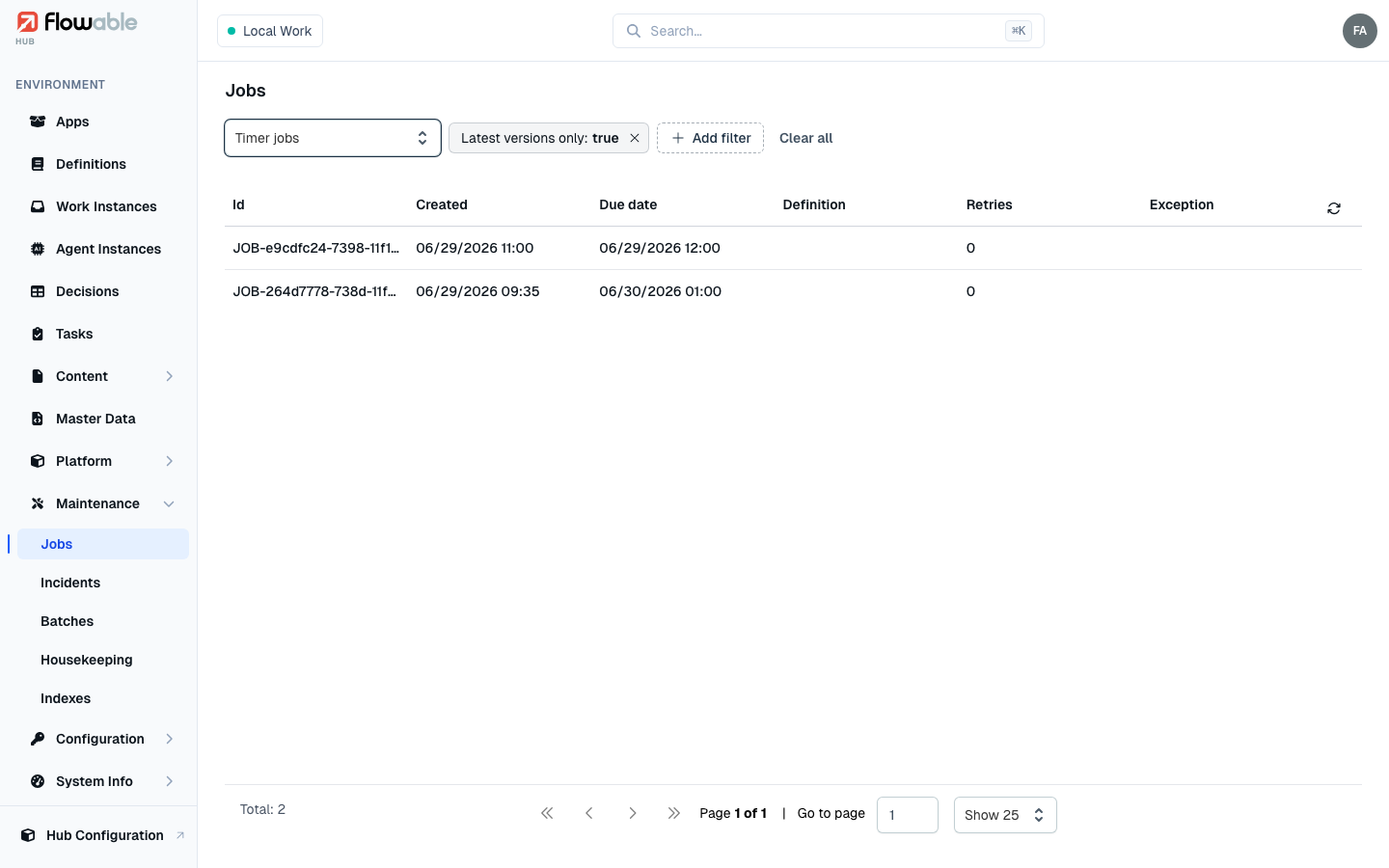
Jobs are organized by type; select the type with the dropdown at the top of the page — the list stays empty until you do — and the columns adapt to the selected type.
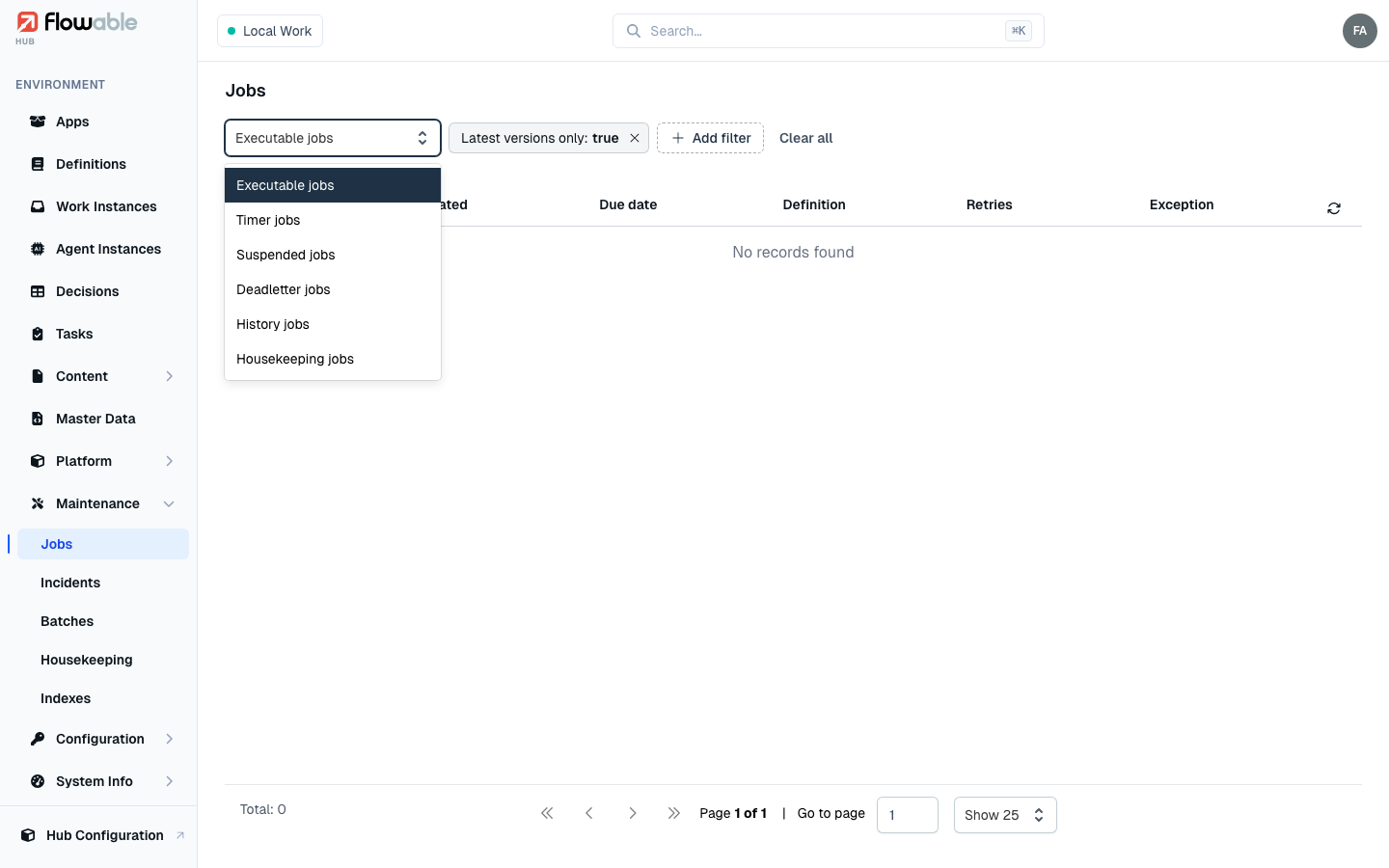
- Executable — jobs that are ready to run now and are waiting for an async executor to pick them up. A large, growing executable list means the executors are not keeping pace with the load.
- Timer — jobs scheduled to fire at a future time (timer events, timer boundary events, SLA timers). They remain here until their due date arrives, at which point they become executable.
- Suspended — jobs belonging to instances that have been suspended; they will not run until the instance is resumed.
- Deadletter — jobs that have exhausted all their retries and failed. The engine will not retry them automatically; they sit here until an operator investigates and either fixes the cause and retries, or deletes them. This is the queue to watch most closely.
- History — history jobs that asynchronously persist audit and history data. A backlog here delays history and reporting but does not affect live execution.
- Housekeeping — the background jobs produced by housekeeping runs as they delete historical data.
You can filter the list by Definition (optionally latest versions only), instance ID, element ID, whether the job carries an exception, and a due-date range.
Job details
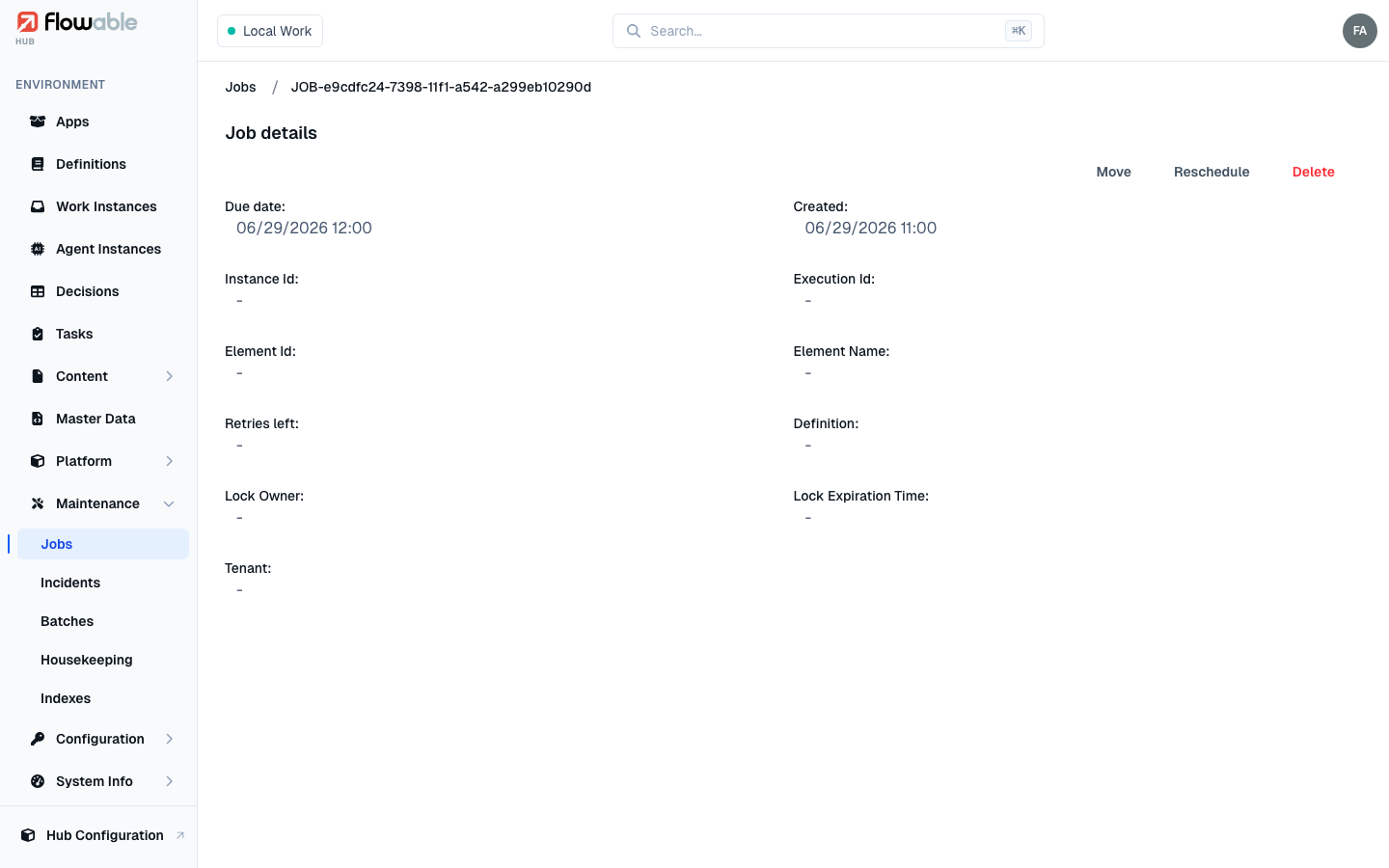
Click a job to open its detail view. It shows everything you need to diagnose the job and the work it belongs to: Due date, Created, Instance Id and Execution Id, the Element Id and Element Name of the step that created it, Retries left, the Definition reference, the Lock Owner and Lock Expiration Time (which executor currently holds the job, if any), and the Tenant. When a job has failed, the detail also shows the exception from its last execution, including the full stack trace, so you can diagnose the cause without leaving Hub.
Acting on a job
The actions in the top-right corner let you recover or manage a job — this is how you clear a stuck queue. Which actions appear depends on the job type, and each requires its own permission:
- Execute — run an executable job immediately rather than waiting for an executor to pick it up
(
hub:job:execute). - Move — move a job between queues; available for every type except executable and housekeeping
(
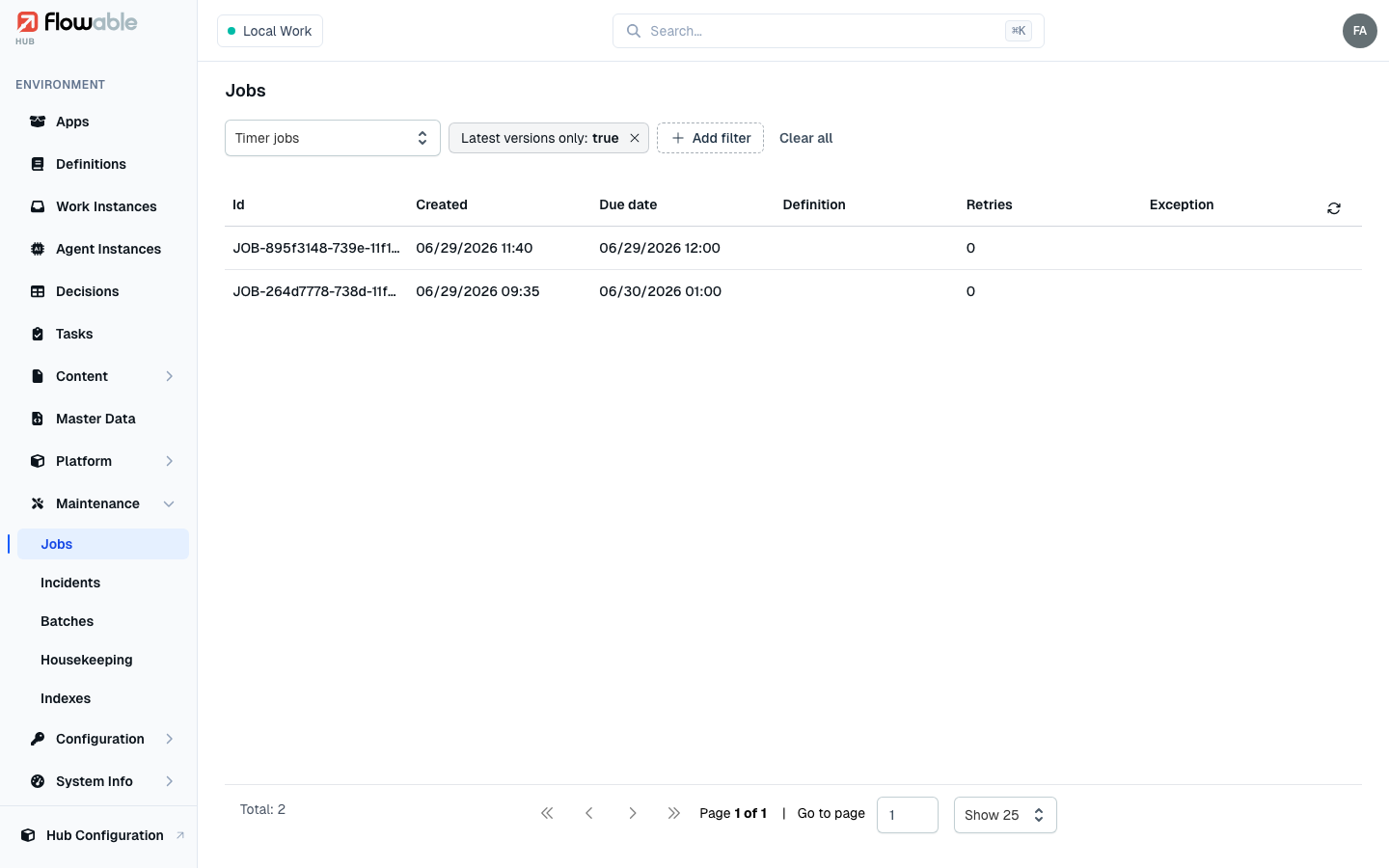
hub:job:move). The most common use is to move a deadletter job back to the executable queue so the engine retries it, once you have fixed the underlying cause (for example a service that was temporarily unavailable). - Reschedule — change a timer job's due date, for instance to make it fire sooner or later
(
hub:job:reschedule). A date in the past is rejected. - Delete — permanently remove any job (
hub:job:delete). Use this for a deadletter job that should not run at all (for example one tied to data that no longer makes sense), keeping in mind that the work it represented will not happen.
A typical recovery flow
- The Health dashboard shows a non-zero Deadletter Jobs total, or an incident points at a slow or failing job.
- Open Jobs, switch the type to Deadletter, and find the job (turn off latest versions only if it is on an older version).
- Open the job and read its Element Name, Definition and exception to understand what failed.
- Fix the root cause (correct data, restore the failing integration, redeploy).
- Move the job back to the executable queue so the engine retries it — or Delete it if it should be abandoned.