Navigating Hub
Flowable Hub is built around a single idea: everything in a running environment is connected, and you explore it by drilling down. Rather than learning each screen in isolation, it helps to understand the few entry points you start from and how every view links to the next. Once that clicks, finding anything in Hub becomes a matter of following the trail.
This page explains how to move around Hub. The sections that follow document each area in detail.
The three levels of context
Every URL and every screen in Hub sits at one of three levels:
- Hub — the application itself. Your login, the global search, and the Hub Configuration area (clusters, Hub users and roles, the license) live here. This level is the same regardless of which environment you look at.
- Environment — a single Flowable runtime cluster, chosen with the selector in the top-left corner (for example Local Work). Almost everything you do day-to-day happens inside an environment: apps, instances, tasks, jobs, dashboards and so on. Switching environments re-points every section in the sidebar at that cluster.
- Object — a specific app, definition, instance, task, job, decision, and so on. This is where you spend most of your time, drilling into the details of one thing and following its links to related things.
The breadcrumb at the top of every detail view tells you exactly where you are in this hierarchy, and each segment is clickable, so you can always step back up.
The list → detail pattern
Nearly every section in Hub follows the same shape, so once you have used one you have used them all:
- A filter bar at the top to narrow down what you are looking at (by name, key, state, date, definition, and so on). More specific criteria are available behind Add filter.
- A paged list of results. Columns are tailored to the section, and icons and ID prefixes (
PRCfor a process instance,CASfor a case,TSKfor a task,AGTfor an agent) tell object types apart at a glance. - Clicking a row opens its detail view, which is where drilling down happens.
Where you start
In practice you almost always begin from one of two places: an app (when you are thinking top-down, "what is this solution doing?") or a work instance (when you are thinking operationally, "what is happening with this specific process or case?").
Starting from an app
An app is the deployable solution. Starting here gives you the top-down view: which apps are deployed, what they contain, and what they are producing at runtime.
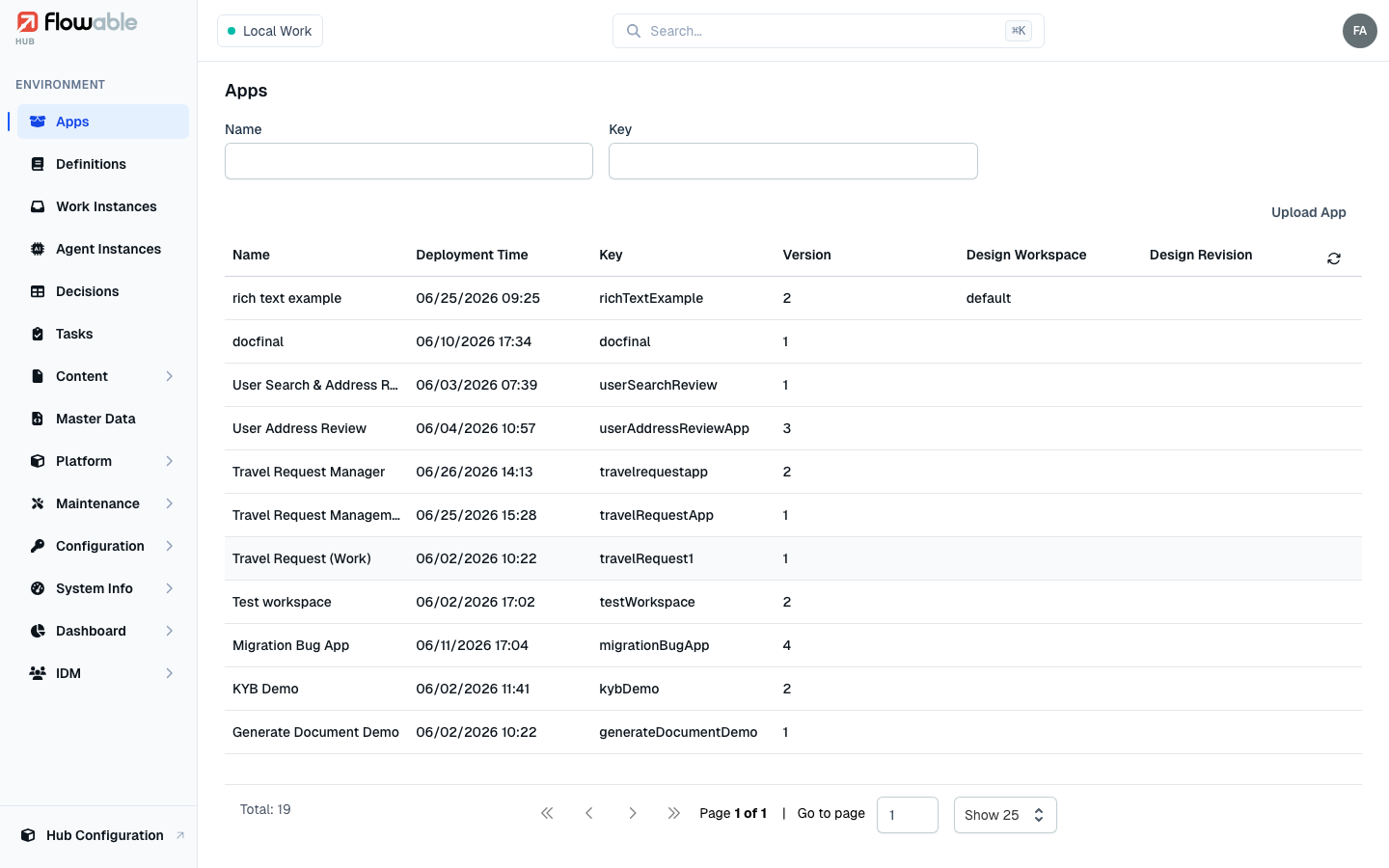
From an app you drill down step by step:
App → Definition → Instance → Task / Decision / Job
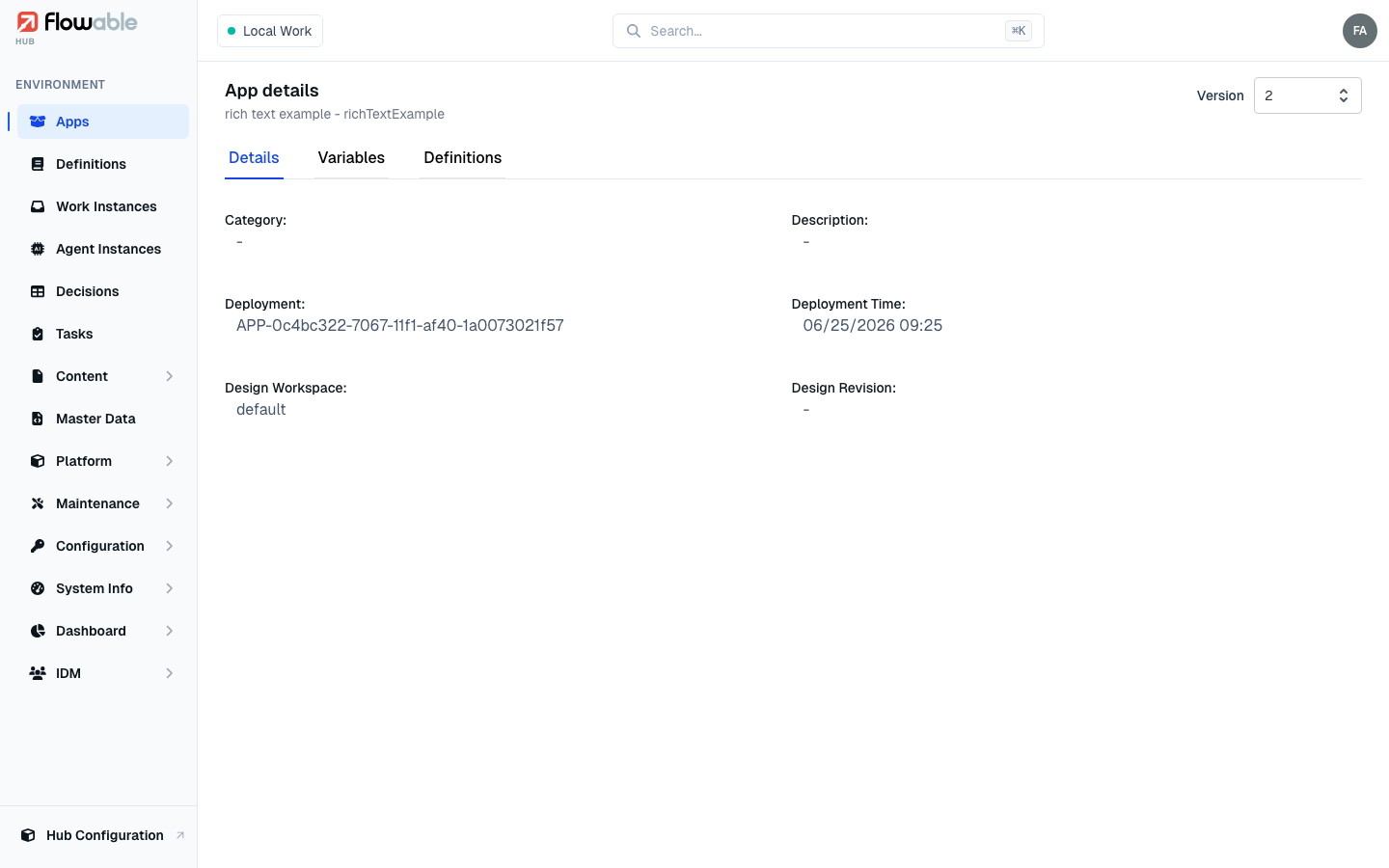
Open an app to see the models and definitions it deployed. Open a definition to see its versions and, on the Instances tab, every instance it has produced. Open an instance to see its full execution — and from there reach the tasks, decisions, jobs and forms that belong to it.
Starting from a work instance
More often, day-to-day operations start from a work instance — a single running or completed process or case. The instance detail view is the busiest hub of links in the whole application: from one screen you can see and reach almost everything connected to that instance.
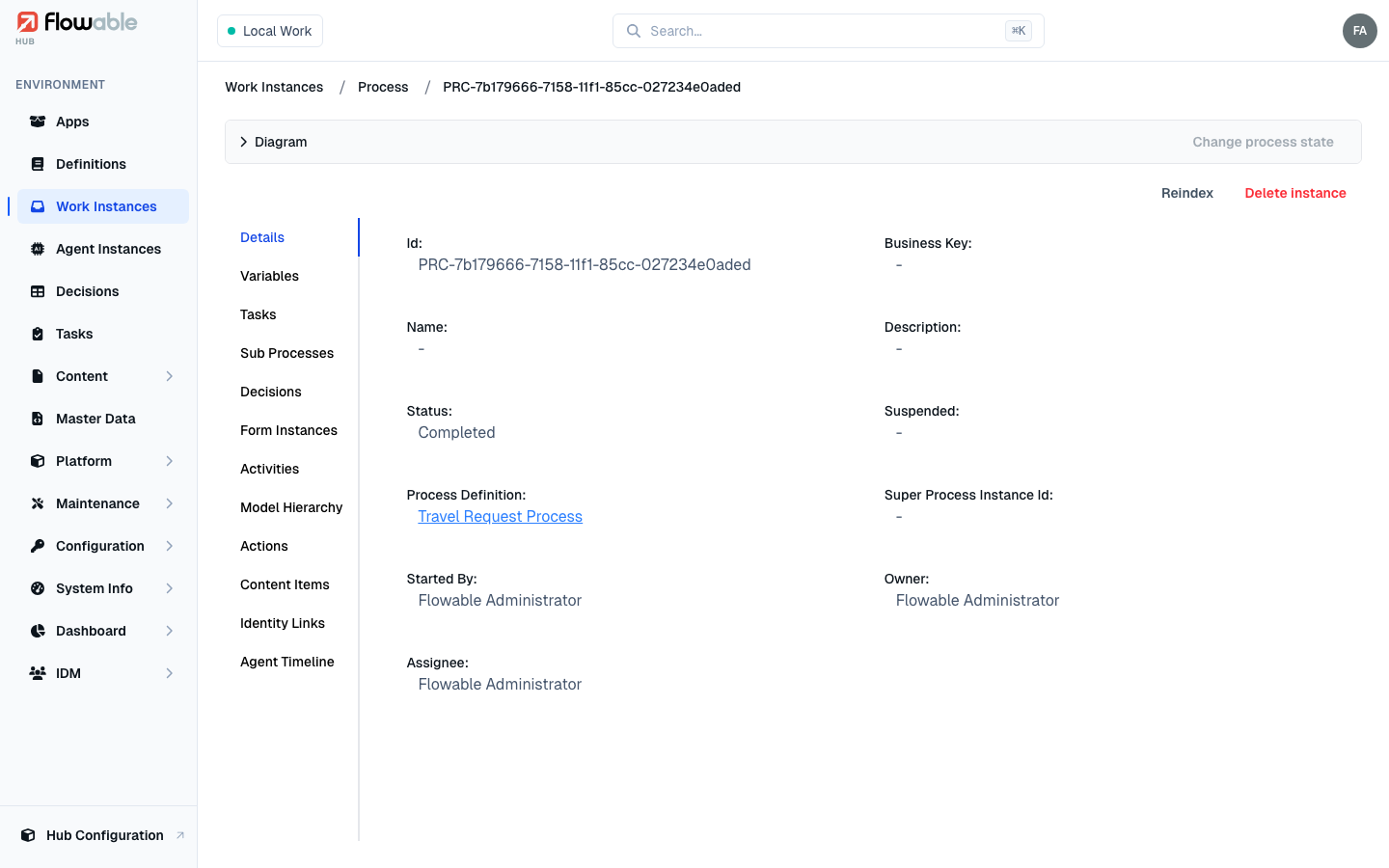
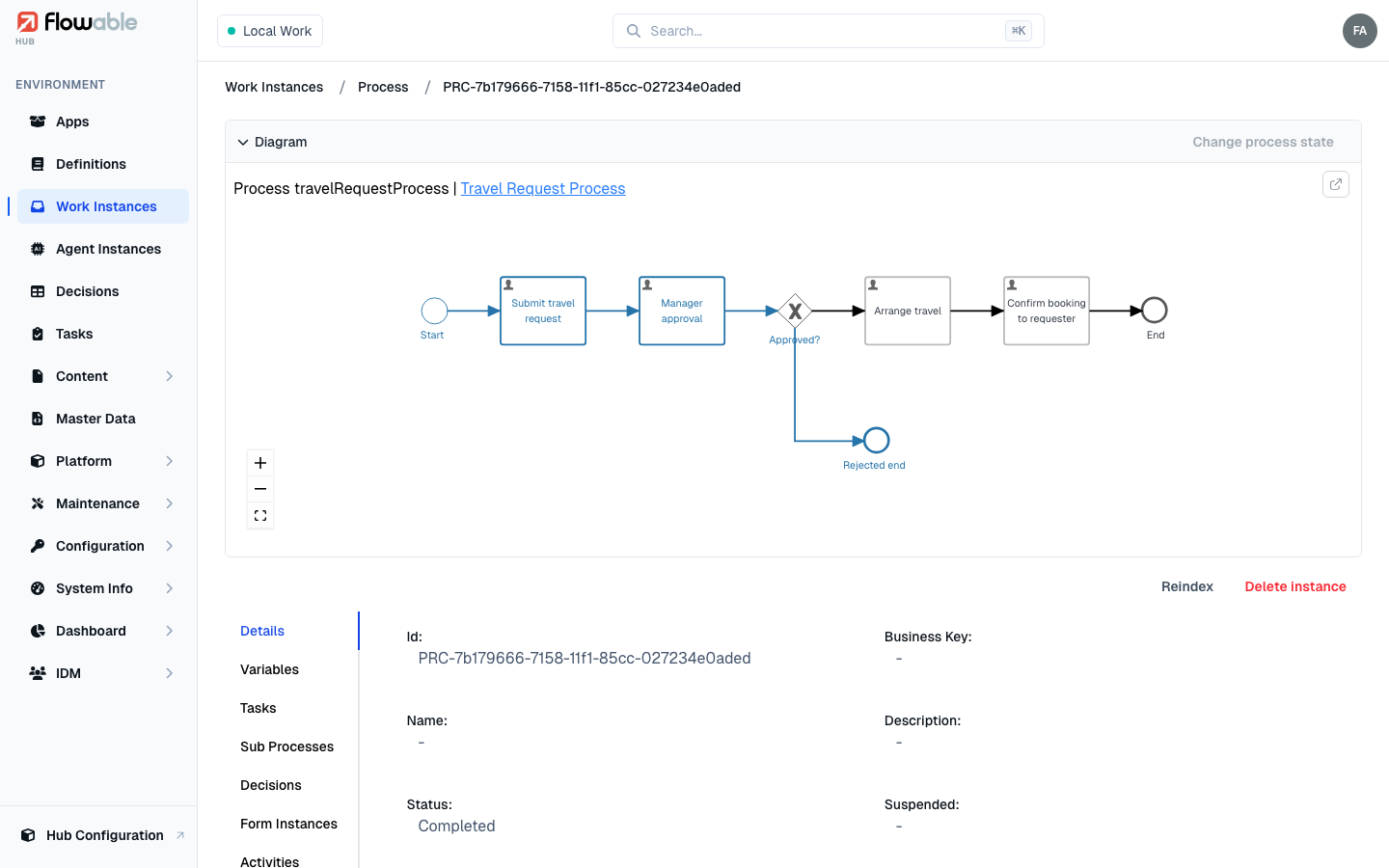
From a single instance you can:
- Expand the Diagram to see exactly where execution has been and where it is now, and act on it directly (move tokens with Change process state).
- Jump up to the definition the instance runs on (the linked definition name in the Details tab).
- Drop into any of its tasks, sub-processes, decisions, form instances, content items or agent activity through the tabs — each entry links to that object's own detail view.
Following the trail (cross-navigation)
The power of Hub is that these links work in every direction, so you can approach the same object from whichever angle you happen to be at:
- A definition's Instances tab → an individual instance.
- An instance's Tasks tab → a task, and a task links back to its instance.
- An instance's Decisions tab → a decision evaluation.
- A job or incident → the instance and the activity that produced it.
- A dashboard count → the underlying list of instances, jobs or incidents.
Whenever you feel lost, read the breadcrumb, or use the link that points at the object you actually care about — you rarely need to go back to a list and search again.
Jumping straight there with search
When you already know what you are looking for, skip the drill-down entirely. The global search box in the
top bar (shortcut ⌘K / Ctrl+K) lets you jump directly to a section, or look up a specific instance, task or
definition by ID or name.
Switching to Hub administration
The Hub Configuration entry at the bottom of the sidebar leaves the environment view and opens Hub's own administration area — clusters, Hub users, groups, roles, permissions and the license. The Go to environment link at the top of that area takes you back. See Hub Configuration.