Clusters
The Hub Configuration area is Hub's own administration section, separate from the runtime environments it monitors. You reach it from the Hub Configuration entry at the bottom of the environment sidebar, and you return to an environment with the Go to environment link at the top of the Hub Configuration sidebar. Access to this area is restricted to Hub administrators (it is available on self-hosted installations).
Hub Configuration covers Clusters, Access Control (users, groups, roles and permissions, plus the audit log) and the License.
Clusters
A cluster is a Flowable runtime environment that Hub connects to. Each cluster you register here becomes an environment you can select and monitor from the top-left environment selector — so registering clusters is the first thing you do when setting Hub up.
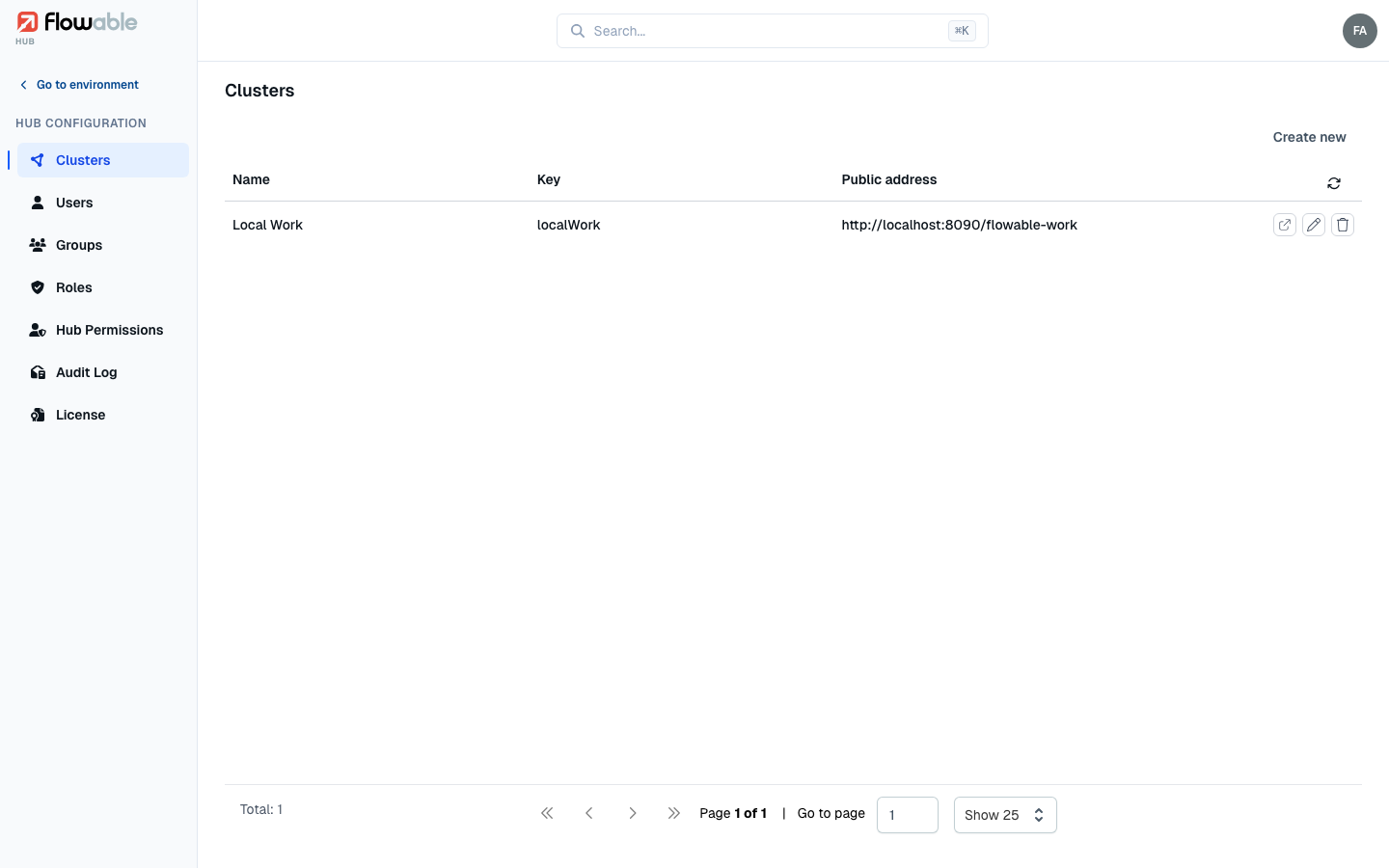
The Clusters view lists every registered cluster with its name, key and public address. Each row offers an Open action that jumps straight into that environment's Apps view, plus Edit and Delete actions on clusters you are allowed to change. Deleting a cluster only disconnects Hub from it; it does not affect the runtime itself.
Adding a cluster
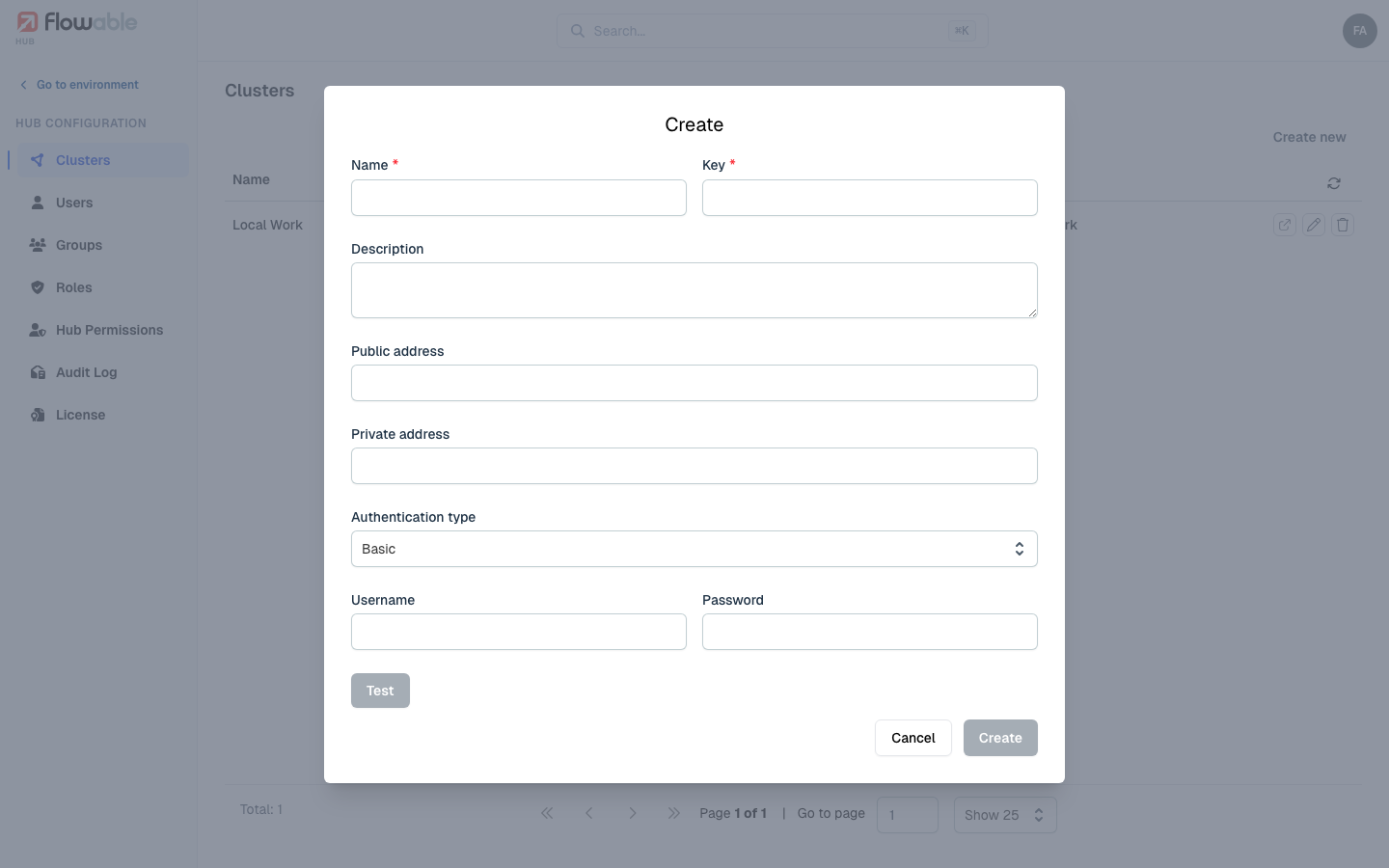
Click Create new to register a cluster. You describe both how to reach it and what it is:
- Name, Key and Description identify the cluster in Hub.
- Public address and Private address are the URLs Hub uses to call the cluster's API.
- Authentication type tells Hub how to authenticate those calls. The options cover the common patterns — Basic, Bearer token, Custom Header, Current User (forward the signed-in user's identity), OAuth2 and OAuth2 Current User, and OIDC Current User ID Token — each revealing the credential fields it needs.
- A set of capability toggles describe the target: whether it is a multi-tenant environment, whether it is Flowable Work and/or Flowable Engage, whether Elasticsearch is enabled, whether it creates metric indices, and whether it has the tutorial enabled. These control which sections and dashboards Hub shows for the environment.
Use Test to verify the connection before saving — Hub reports whether it could reach the environment.
Cluster details
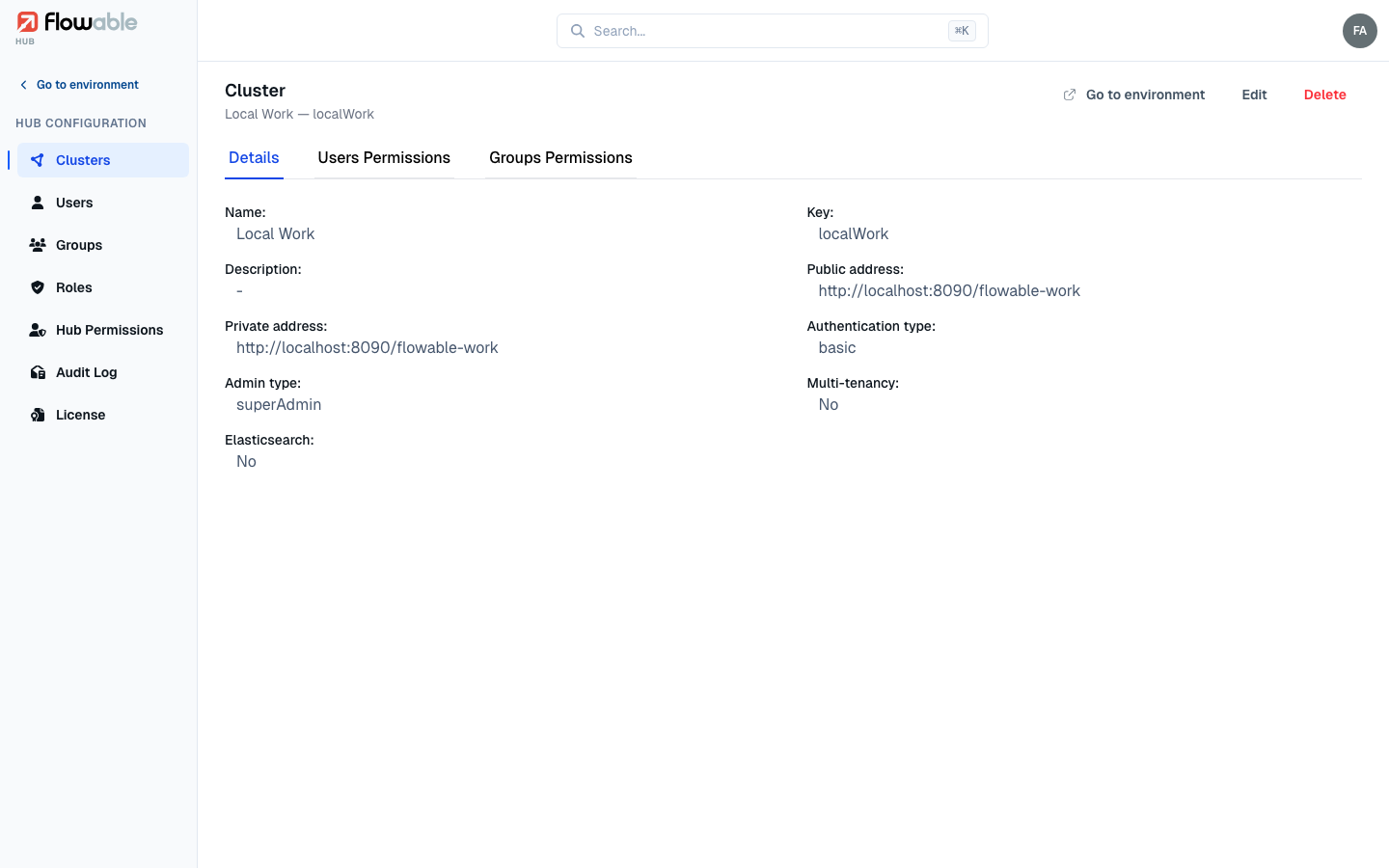
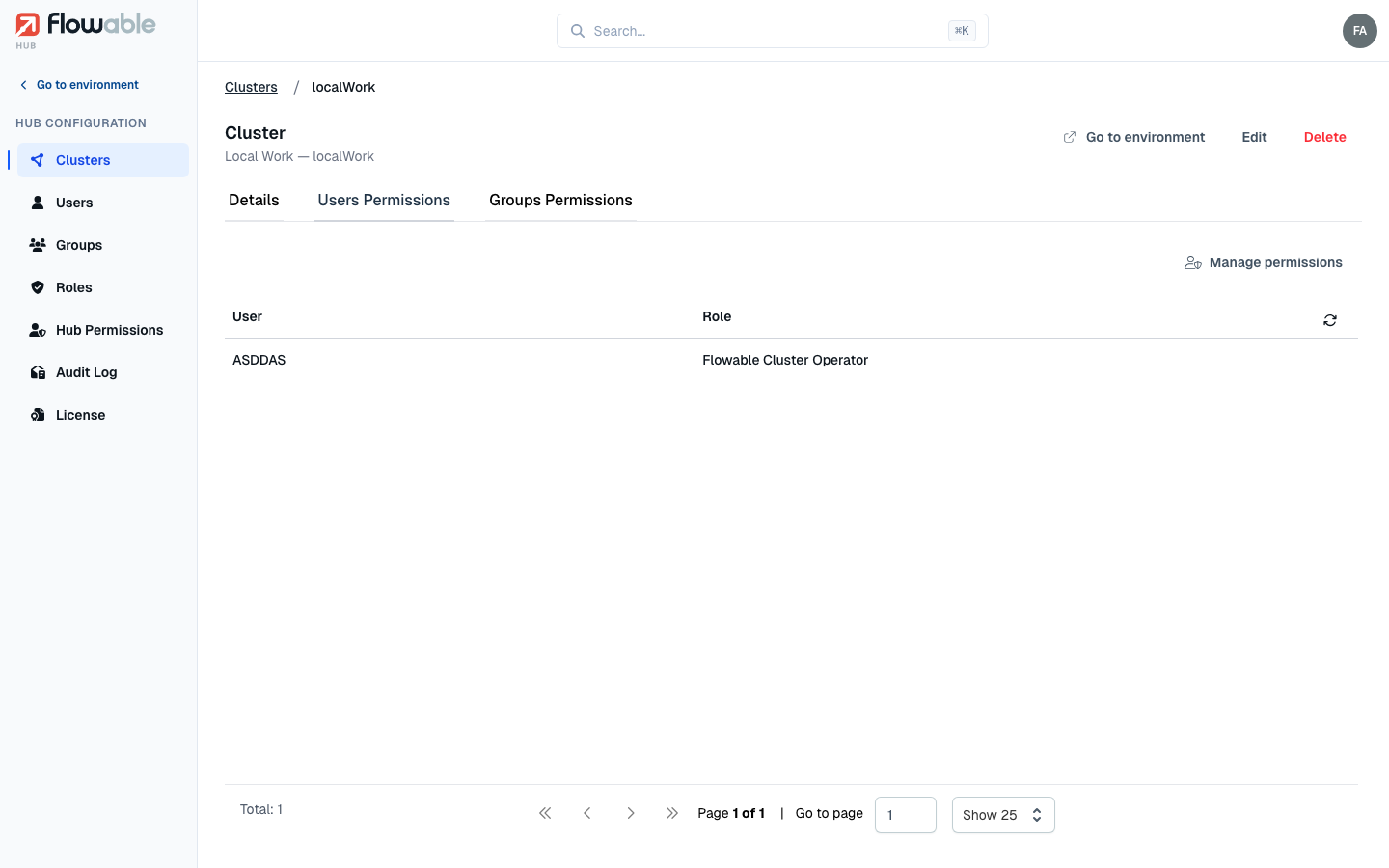
Click a cluster to open its detail view. It has three tabs:
- Details shows the connection settings you entered, plus the server capabilities Hub discovered from the live environment — its admin type, whether multi-tenancy is on, and whether Elasticsearch is available. Edit and Delete actions and an Open shortcut sit in the header.
- Users Permissions and Groups Permissions are where you grant cluster-type roles for this cluster — for example giving a support team the Flowable Cluster Reader role so they can view, but not change, everything in this environment. Use Manage permissions to add a user or group, assign one or more roles, and save. This is the per-cluster counterpart to assigning roles from a user's or group's Assign Role tab.