Access Control
Access control in Hub Configuration governs who can sign in to Hub and what they are allowed to do. It is deliberately separate from the IDM of a runtime environment: IDM manages the identities that live inside an environment (the people and groups your processes and cases assign work to), while access control here manages Hub's own users and the roles and permissions that decide who may operate each connected cluster and who may administer Hub itself.
Access control is organized into Users, Groups, Roles, Hub Permissions and an Audit Log. Each
sub-section is protected by its own permission (hub:permission:user, :group, :role and :audit), so you can,
for example, let a user review the audit log without being able to change role assignments.
How permissions fit together
Hub uses a role-based model with three moving parts:
- A permission is a single fine-grained capability, written as
hub:<area>:<type>:<action>— for examplehub:instance:work:read(view work instances) orhub:job:execute(run a job). Permissions fall into two groups: cluster permissions, which apply inside a runtime environment, and hub permissions, which apply to Hub administration itself. - A role is a named bundle of permissions with a type of either cluster or hub. Cluster roles are granted per environment; hub roles are granted on Hub.
- An assignment connects a user or group to a role, either for a specific cluster or for Hub. A user or group can hold more than one role on the same target, and the effective permissions are the union of all of them.
You assign roles from two directions, whichever is more convenient:
- Per person/group — from a user's or group's Assign Role tab (see below).
- Per target — from a cluster's Users/Groups Permissions tabs (see Clusters) or from the Hub Permissions view for Hub itself.
Users
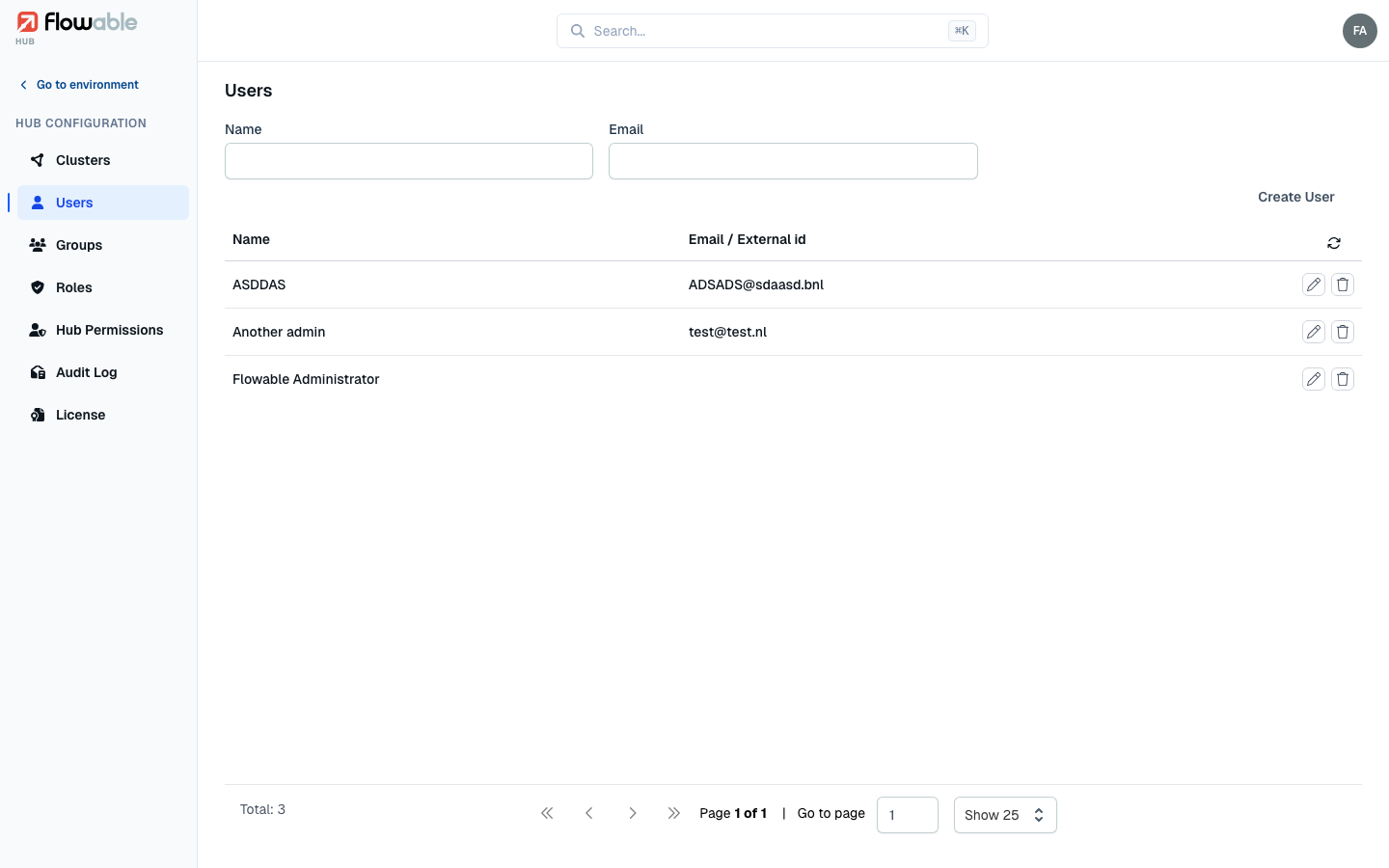
The Users view lists Hub's users by name and email / external ID. You can filter by name or email. Click Create User to add one, or click a row to open the user.
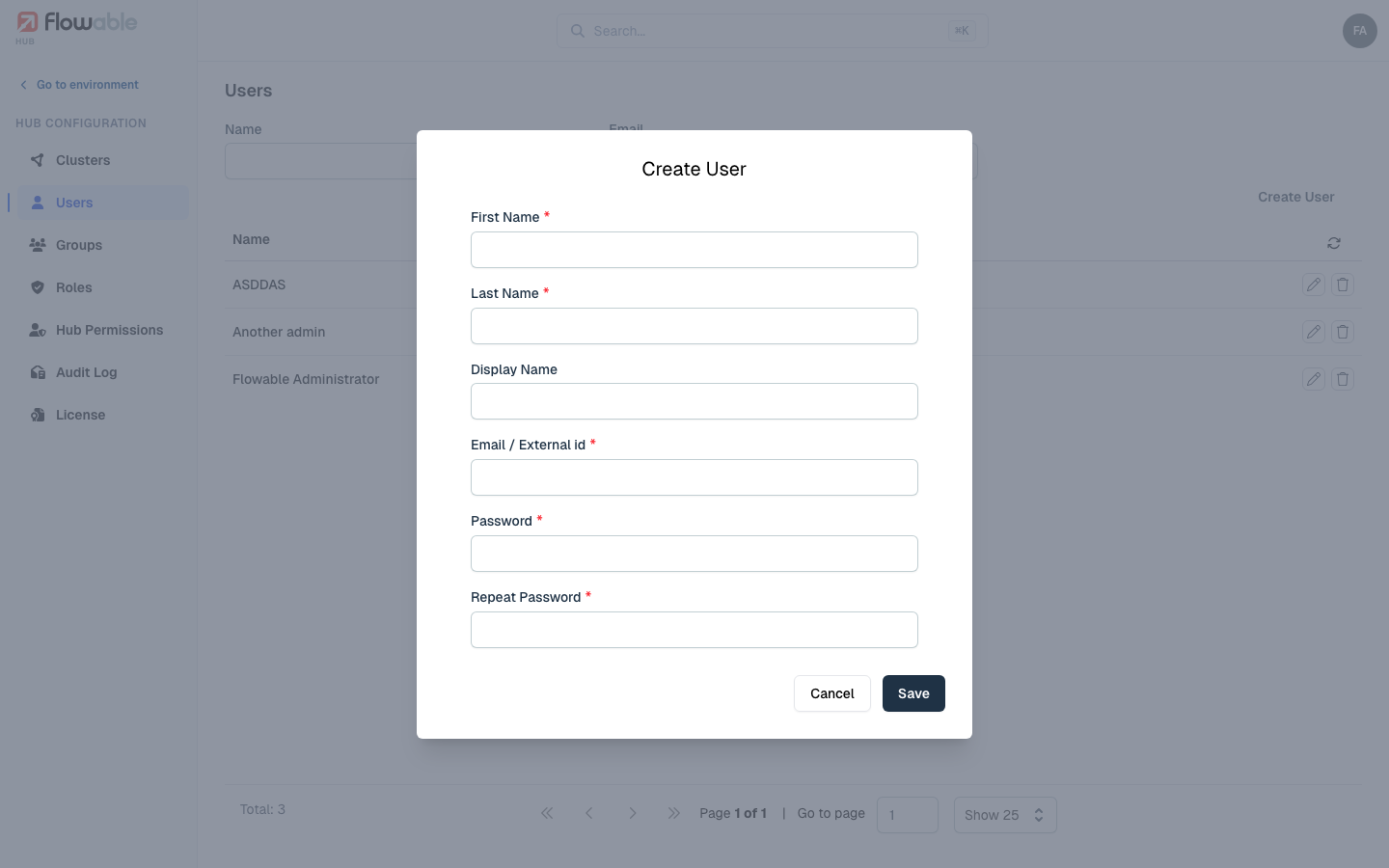
Creating a user asks for First name, Last name, Email / external ID and an optional Display name. On a self-hosted installation, creating a user also asks for a password (entered twice); Hub then shows the generated credentials once so you can hand them over securely.
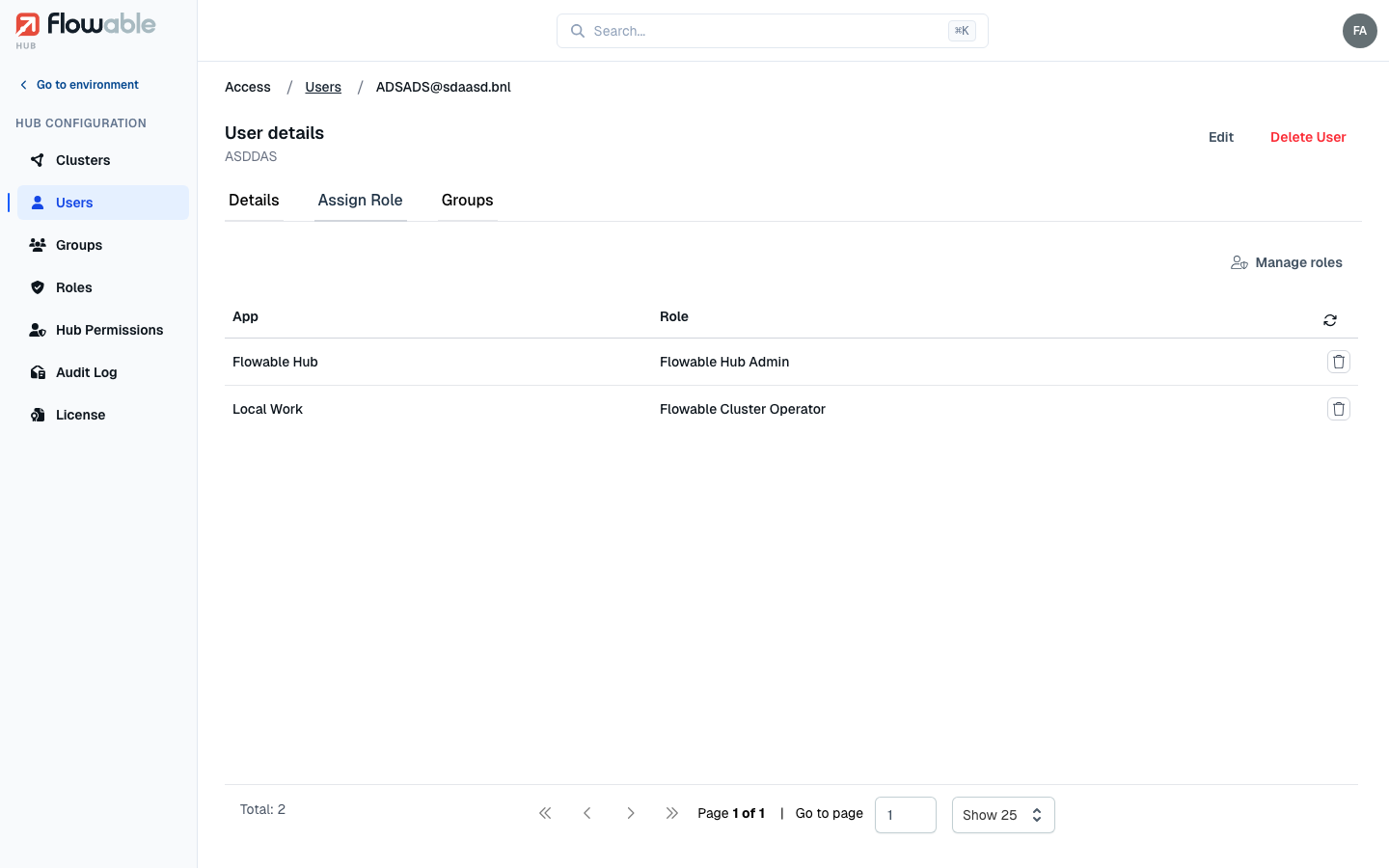
The user detail view has three tabs:
- Details — the user's profile (first/last name, email, display name), with Edit and Delete User actions.
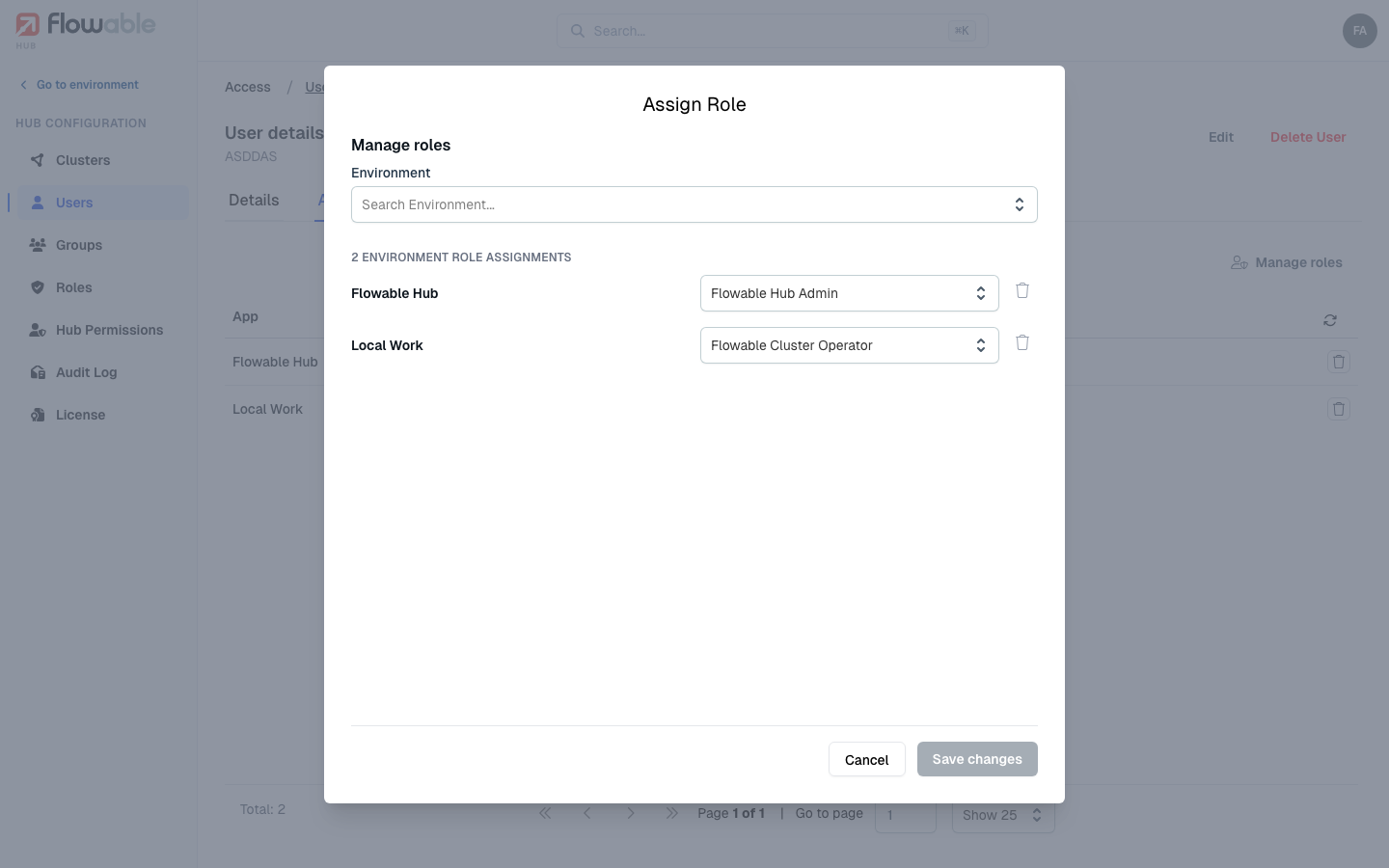
- Assign Role — the roles this user holds, listed as app / role pairs. Use Manage roles to open the assignment modal, pick an environment, and add one or more roles to it; each environment offers only the roles whose type matches it (cluster-type roles for runtime environments, hub-type roles for Hub). Because a user can hold several roles per environment, this is where you compose their exact access. Removing a row revokes that role for that environment.
- Groups — the Hub groups the user belongs to; add or remove memberships here.
Groups
A group bundles users so roles can be assigned to many people at once. The Groups view lists groups by key, name and type. A group's type — Cluster, Design, Hub, Role or Work — determines which kind of target it can be given roles on (for example a Cluster group can receive cluster-type roles for runtime environments).
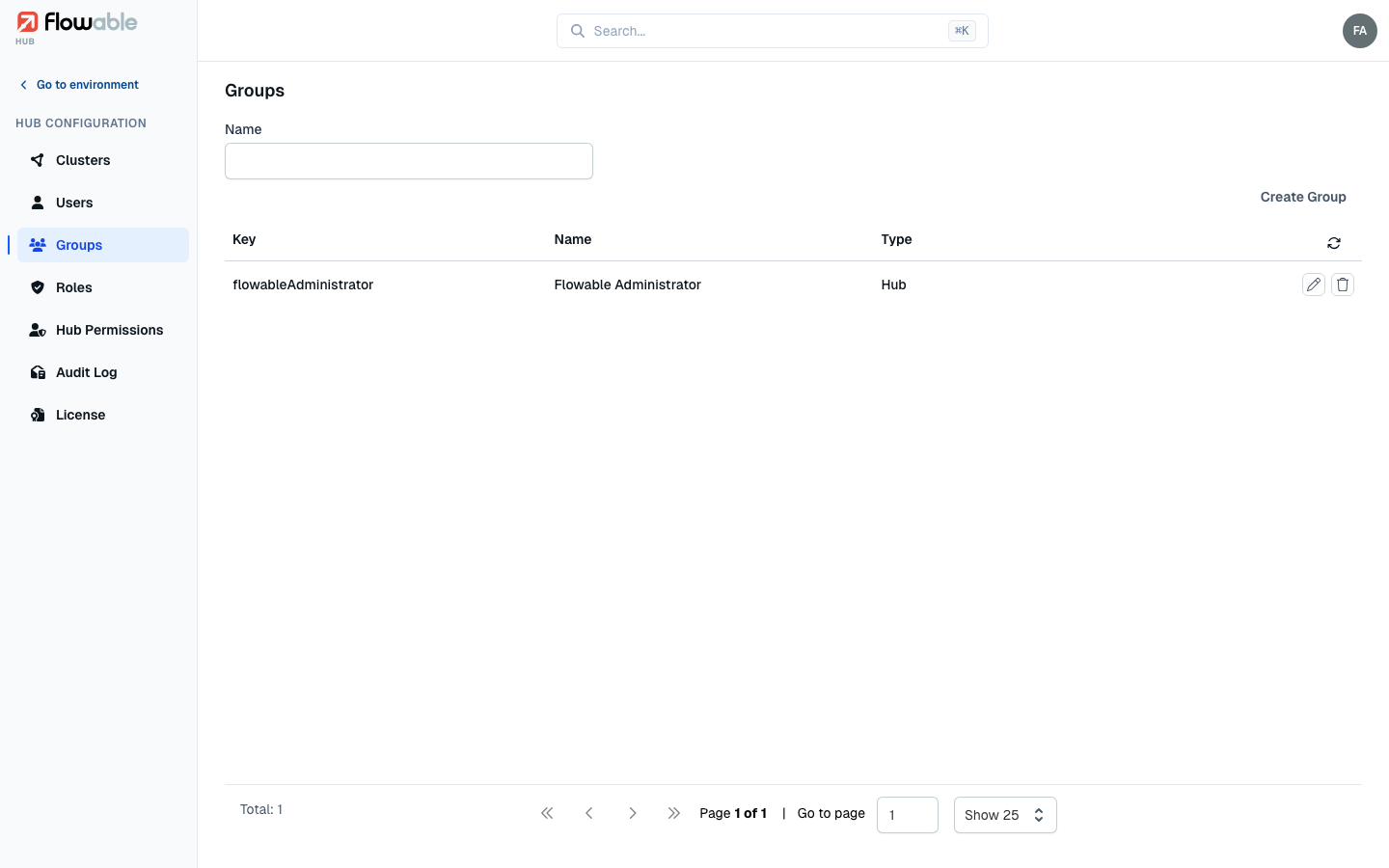
Click Create Group to add one (name, key and type). A group's detail view mirrors a user's: a Details tab, an Assign Role tab that works exactly as it does for a user, and a Users tab for managing membership.
Roles
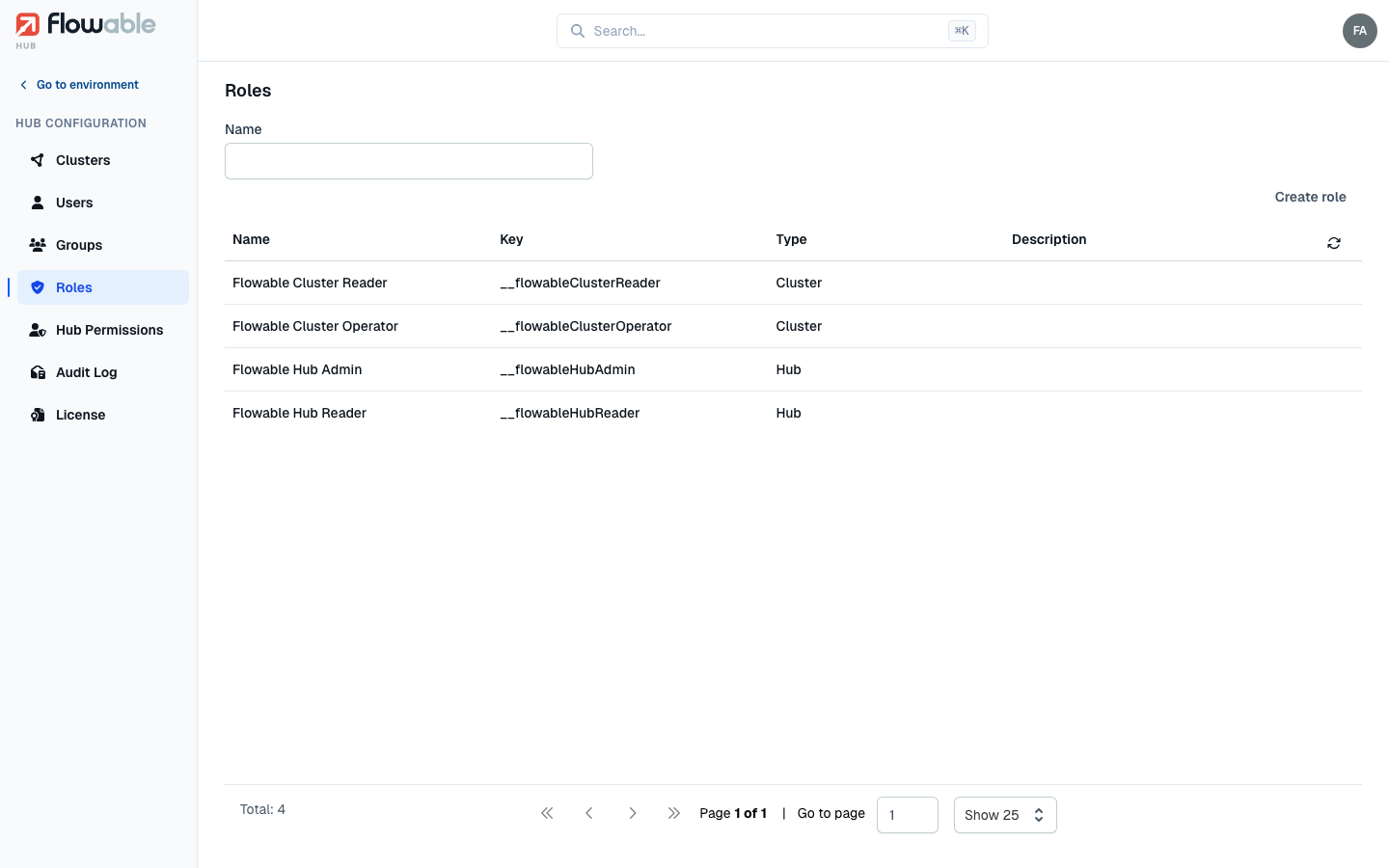
A role is a named, reusable bundle of permissions. The Roles view lists every role with its name, key, type and description, and you can filter by name.
Built-in roles
Flowable ships four built-in roles that cover the most common needs. They cannot be edited or deleted, and they appear in the list without row actions:
| Role | Type | What it grants |
|---|---|---|
| Flowable Cluster Reader | Cluster | Read-only access to everything in a runtime environment. |
| Flowable Cluster Operator | Cluster | Full operational control of a runtime environment — act on instances, tasks, jobs, definitions, configuration and identity. |
| Flowable Hub Admin | Hub | Full administration of Hub itself, including managing users, groups, roles and the audit log. |
| Flowable Hub Reader | Hub | Read-only access to Hub administration. |
Custom roles
Click Create role to define your own. A role has a name, key, type (cluster or hub — this fixes which permissions it can contain and cannot be changed later) and an optional description.
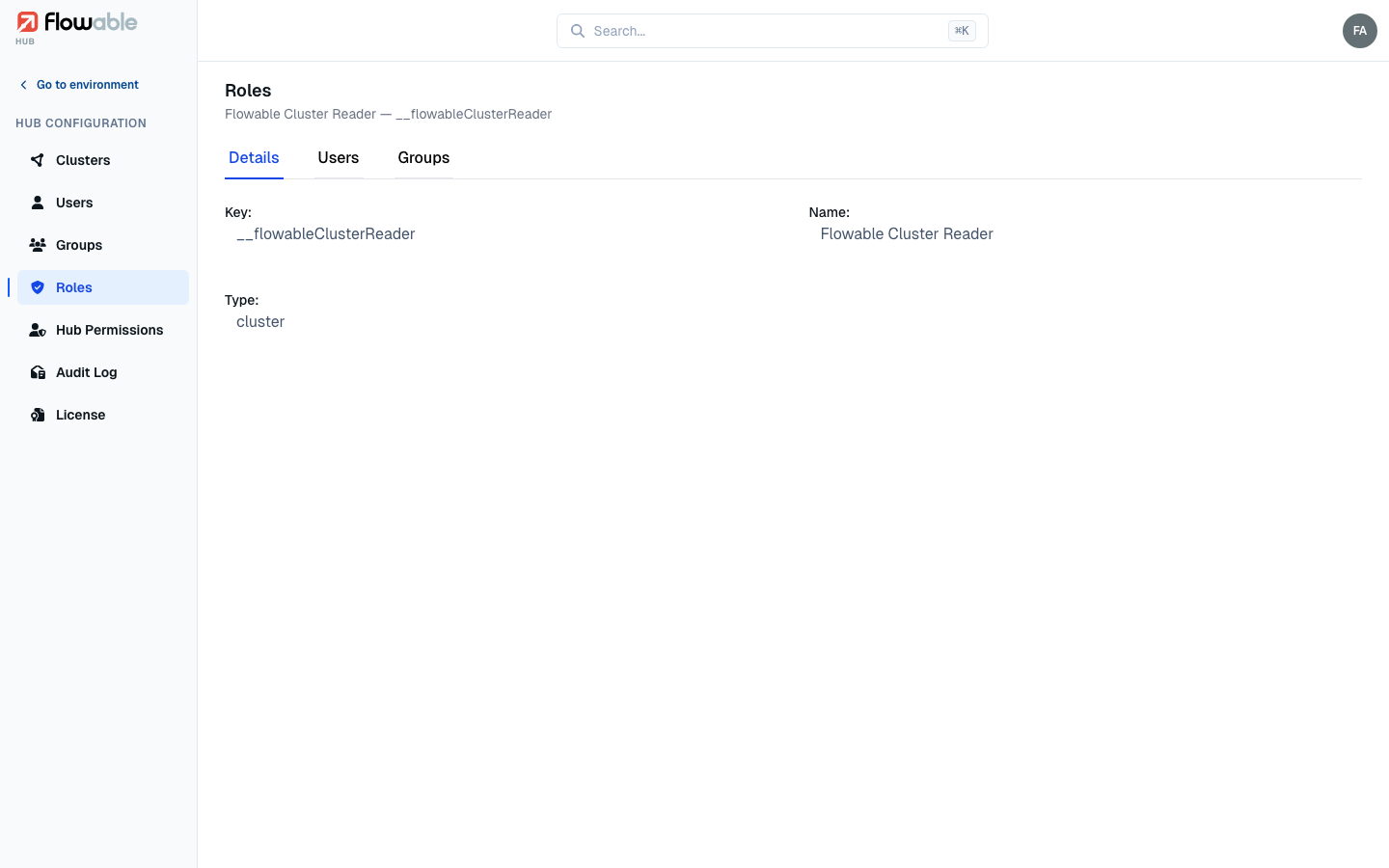
Open a role to see its detail view. Custom roles add a Permissions tab (built-in roles hide it) alongside Users and Groups tabs that show who currently holds the role.
The Permissions editor groups the available capabilities into sections — Runtime (instances, tasks, decisions, agents, content, master data, sequence values…), Definitions (models, apps, deployments), Configuration (secrets, OAuth2 clients, tenant variables, agent connections and prices), Jobs, Identity (the environment's IDM users and groups), Permissions (Hub access control), and read-only Info — and offers each capability's actions as checkboxes (View, Create, Edit, Delete, plus specialised actions such as Terminate, Migrate, Change state, Reindex, Execute, Move, Reschedule, Assign, Delegate and Complete). To get started quickly there are Quick start presets — Administrator (everything), Modeler (full definition and app control, read-only elsewhere) and Viewer (read-only across the platform) — and per-section Grant all / Clear all shortcuts. Granting any action automatically grants View for that capability, and clearing View clears the whole capability. Which sections appear depends on the role type: hub-type roles show only the Hub access-control permissions, cluster-type roles show the runtime permissions.
Deleting a role
Deleting a custom role checks first whether it is still assigned. If nobody holds it, you simply confirm and it is removed. If it is assigned to users or groups, Hub blocks the plain delete and offers a Force delete instead: it tells you how many users and groups are affected, requires you to tick a box acknowledging that force-deleting removes all of the role's assignments (and that those users and groups lose the permissions it granted), and only then enables the Force delete button.
Hub Permissions
The Hub Permissions view is the per-target place to manage who can administer Hub. It has Users and Groups tabs, each listing the subjects that currently hold a hub-type role, with a Manage permissions dialog to grant or revoke them. Assign Flowable Hub Admin here to give someone full Hub administration, or Flowable Hub Reader (or a custom hub role) for a more limited view.
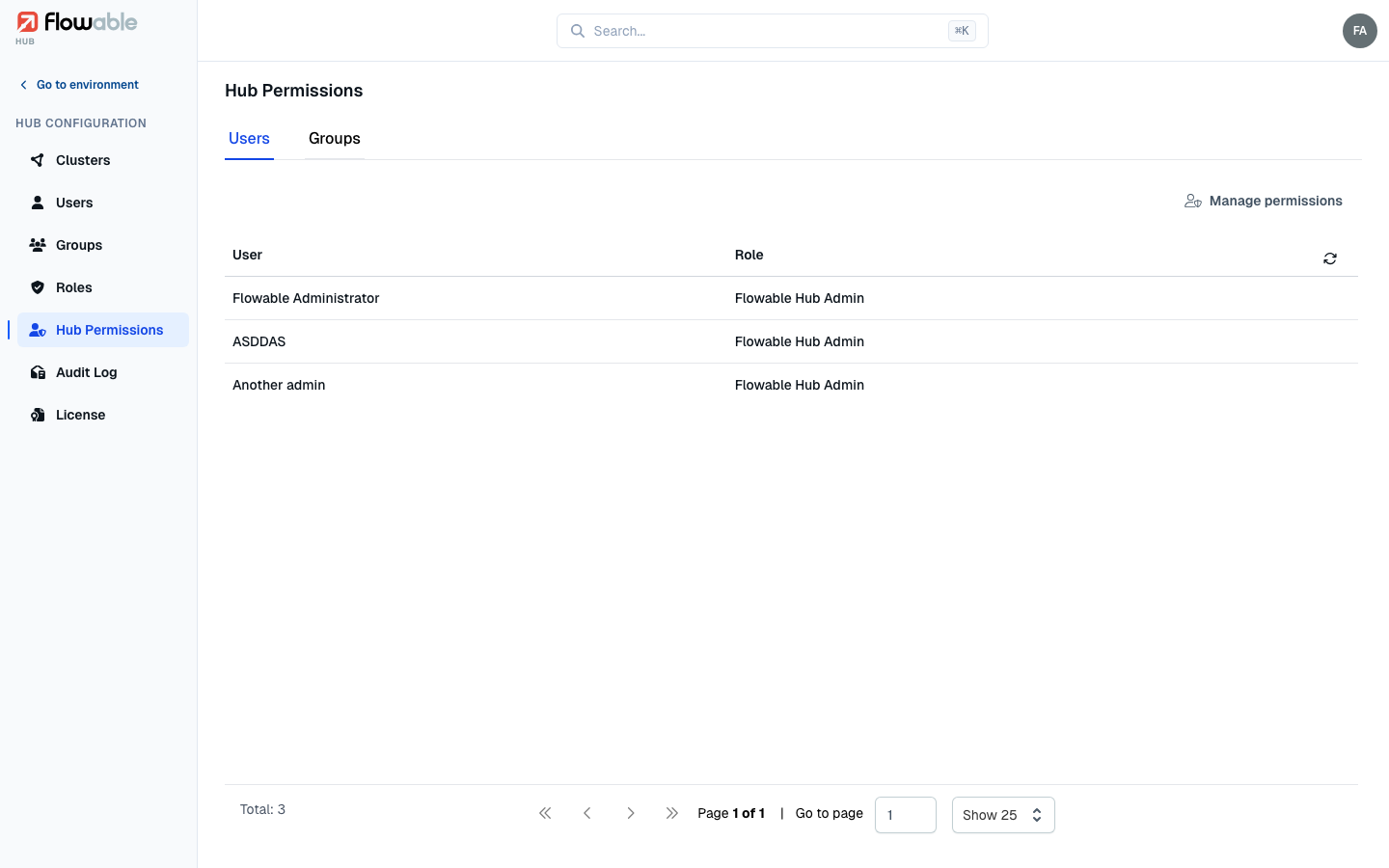
Cluster-level access is managed the same way but from each cluster's Users/Groups Permissions tabs — see Clusters.
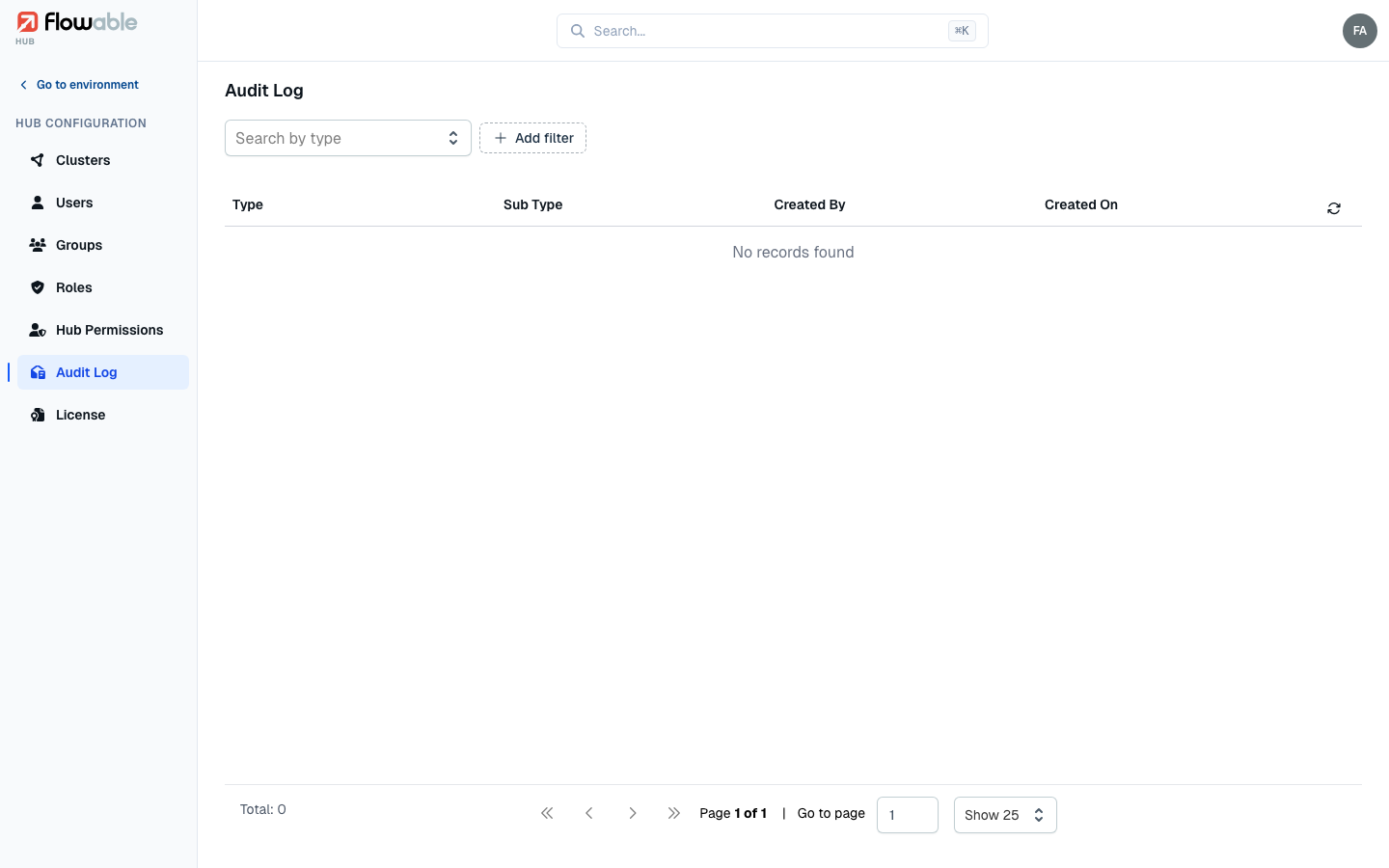
Audit Log
The Audit Log records administrative changes made in Hub — what changed, who changed it and when — so you can
review and, if needed, account for access-control activity. Each entry has a type and sub type, a
Created By user and a Created On timestamp. Filter by type, sub type, creator or date range to narrow the
list, and click an entry to open a side panel with its full details, including the raw JSON payload of the
change. Reading the audit log requires the hub:permission:audit:read permission.