Model Testing
Introduction
Flowable Design lets you author automated tests for your models and run them before an app is published to a production runtime. A test captures a concrete scenario — the inputs, the path through the model and the results you expect — so that the same scenario can be replayed whenever the model changes. This makes it easy to catch regressions early and to document, in an executable form, how a model is supposed to behave.
Testing is the counterpart to token simulation: the simulation lets you explore a model interactively in the browser without asserting anything, while a test executes it on a real runtime and checks the outcome.
Tests are authored in Flowable Design but executed by Flowable Inspect on a connected Flowable Work runtime. When you run a test, Design deploys the model under test (together with the other models it references) to Work as a temporary deployment, asks Inspect to execute the test against it, collects the results, and removes the temporary deployment again. You therefore never have to publish an app to try your tests, and the models you are still editing are never mixed with real, running data.
 info
infoModel testing requires a license that includes the Flowable Inspect component and a connected Flowable Work runtime. Testing has to be enabled on both the Design and the Work side. See Setting up Flowable Inspect testing for the full, end-to-end configuration.
What you can test
Testing is available for the following model types. The way tests are authored differs slightly per model type, so each has its own page. Two kinds of test exist:
- Unit tests are persistent, repeatable checks. They are grouped into test sets, stored with the model, and can be exported, imported, published to Inspect and run in bulk — the shared concepts described below.
- Ad-hoc tests run a model once with a given input to see what it does. They are a design-time convenience: nothing is stored, exported or published.
The table below shows which kinds each model type supports:
| Model type | Unit tests | Ad-hoc tests | Where you author it |
|---|---|---|---|
| Process (BPMN) | ✓ | — | Testing Process Models |
| Case (CMMN) | ✓ | — | Testing Case Models |
| Service | ✓ | ✓ | Testing a Service Registry |
| AI Agent | ✓ | ✓ | Testing AI Agents |
| Action | — | ✓ | Testing Action Models |
Unit tests require only that Inspect testing is enabled — this covers process, case, service and agent unit tests alike. The ad-hoc test surfaces for service, agent and action models each require an additional feature flag on both Design and Work (see the setup guide).
 note
noteWhen a service, agent or action is invoked from a form as part of a process or case test, the corresponding feature flags must be enabled as well — otherwise those invocations will not run during test creation.
Core concepts
Most model tests are organized as test sets:
- A test set is a named collection of tests that belong to a single model (a process, a case, or a specific operation of a service or agent). A test set is stored in your app alongside the model it targets, and it is what you export, import and publish.
- A test (also called a test definition) is a single scenario within a test set. It has a Name and a stable Key, and it can be marked to be skipped when running a whole set.
- For process and case models, a test is a sequence of steps. Each step is linked to an activity (BPMN) or plan item (CMMN) and carries an ordered list of actions — for example set a variable, complete a task or assert a value.
- An assertion compares something in the model's state or output against an expected value using an operator (for example equals, contains, between or matches regex). A test passes only when all of its assertions hold.
Service and agent tests use the same test-set structure, but instead of steps they capture the input parameters passed to an operation and the expected output asserted against the response. See the model-specific pages for details.
The Tests overview
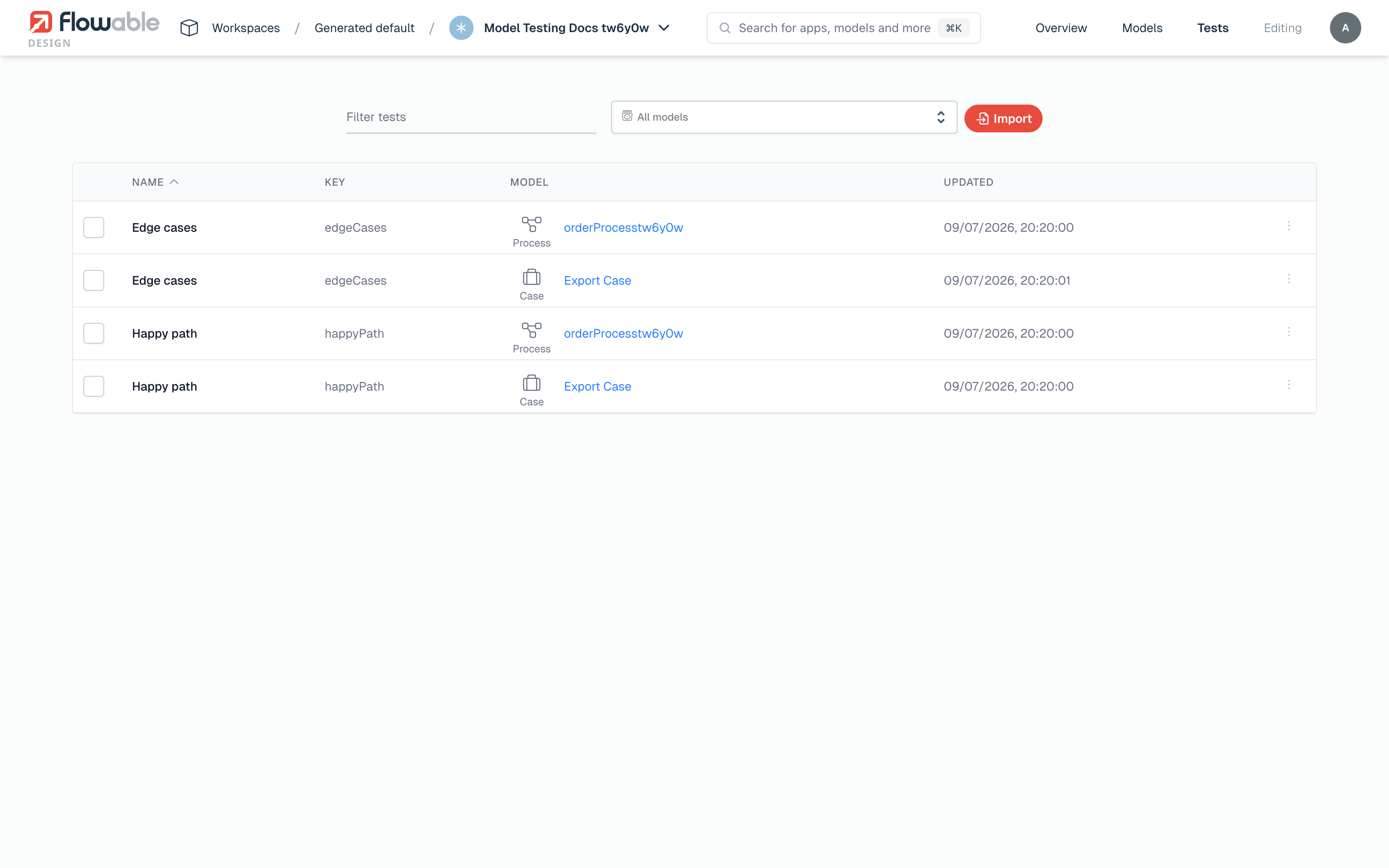
Every app has a Tests overview that lists all test sets across all of the app's models in one place. Open an app in Flowable Design and choose Tests in the left-hand navigation.
The overview shows one row per test set with its Name, Key, target Model and the date it was last Updated. Use the Filter tests search box to narrow the list, and the model-type filter to show only tests for a specific kind of model. From a row you can open the underlying model (which jumps straight to its tests) or delete the test set.
Select one or more tests to export just those; the dropdown menu at the top lets you export or publish all of the app's tests at once, and the Import button brings tests in from a bundle. These actions are described under Exporting and importing tests and Publishing tests to Inspect.
When an app has no tests yet, the overview shows a No tests yet empty state that invites you to open a model and add tests, or to import a tests bundle.
Exporting and importing tests
Test sets can be moved between apps and environments as a ZIP bundle.
- Export — select one or more test sets in the Tests overview and choose Export selected (exporting with nothing selected exports all of the app's test sets). Design produces a
<app>-tests.zipbundle that contains the test definitions together with any binary resources they use (for example documents uploaded for an agent test). - Import — choose Import in the Tests overview and upload a previously exported ZIP. Design first shows a preview:
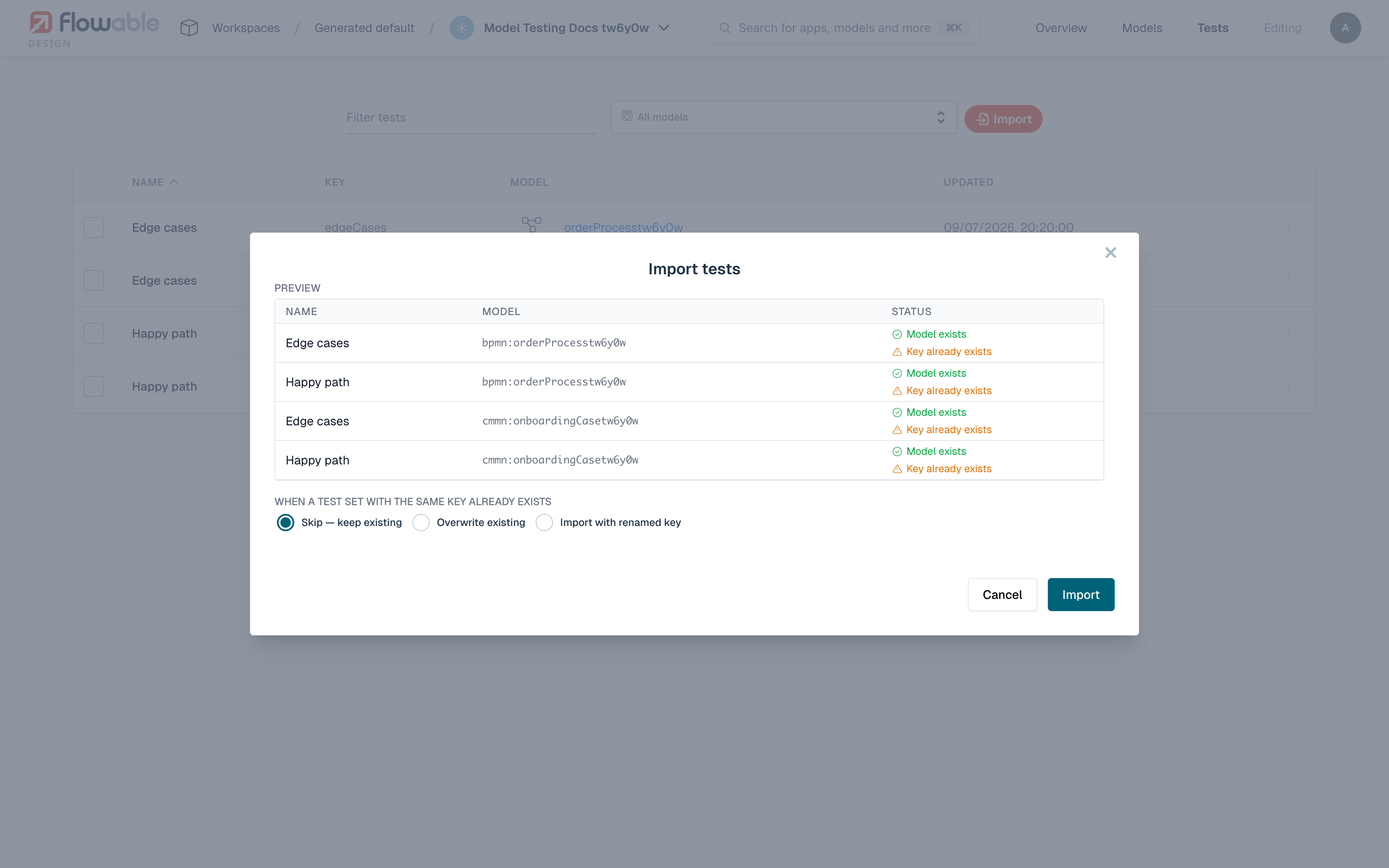
The preview lists each test set in the bundle with its target model and a status:
- Model exists — the target model was found in this app and the test set can be imported as-is.
- Missing model — choose a target — the bundle references a model that does not exist in this app. Pick a model of the same type to rebind the test set to, using the Choose model selector. Import stays disabled until every missing reference is resolved.
- Key already exists — a test set with the same key already exists. Choose how to handle the clash with the When a test set with the same key already exists option:
- Skip — keep existing (the default) leaves the existing test set untouched.
- Overwrite existing replaces the existing test set's content.
- Import with renamed key keeps the existing set and imports the incoming one under a new, suffixed key (for example
billingSet-2).
Because a bundle can be imported into a different app, test sets are matched to models by their relationship within the target app rather than by a global key — that is why an unknown model has to be remapped explicitly.
Publishing tests to Inspect
Running a test from the editor executes it against a temporary deployment and is ideal while you are authoring. To make an app's tests available for repeatable, environment-level execution, publish them to Flowable Inspect.
From an app's action menu choose Publish Tests. In the dialog, pick the Deployment target (the Flowable Inspect environment to publish to) and confirm with Publish. The test sets become available on that target, where they can be run and their results reviewed. Publishing again updates tests that already exist on the target.
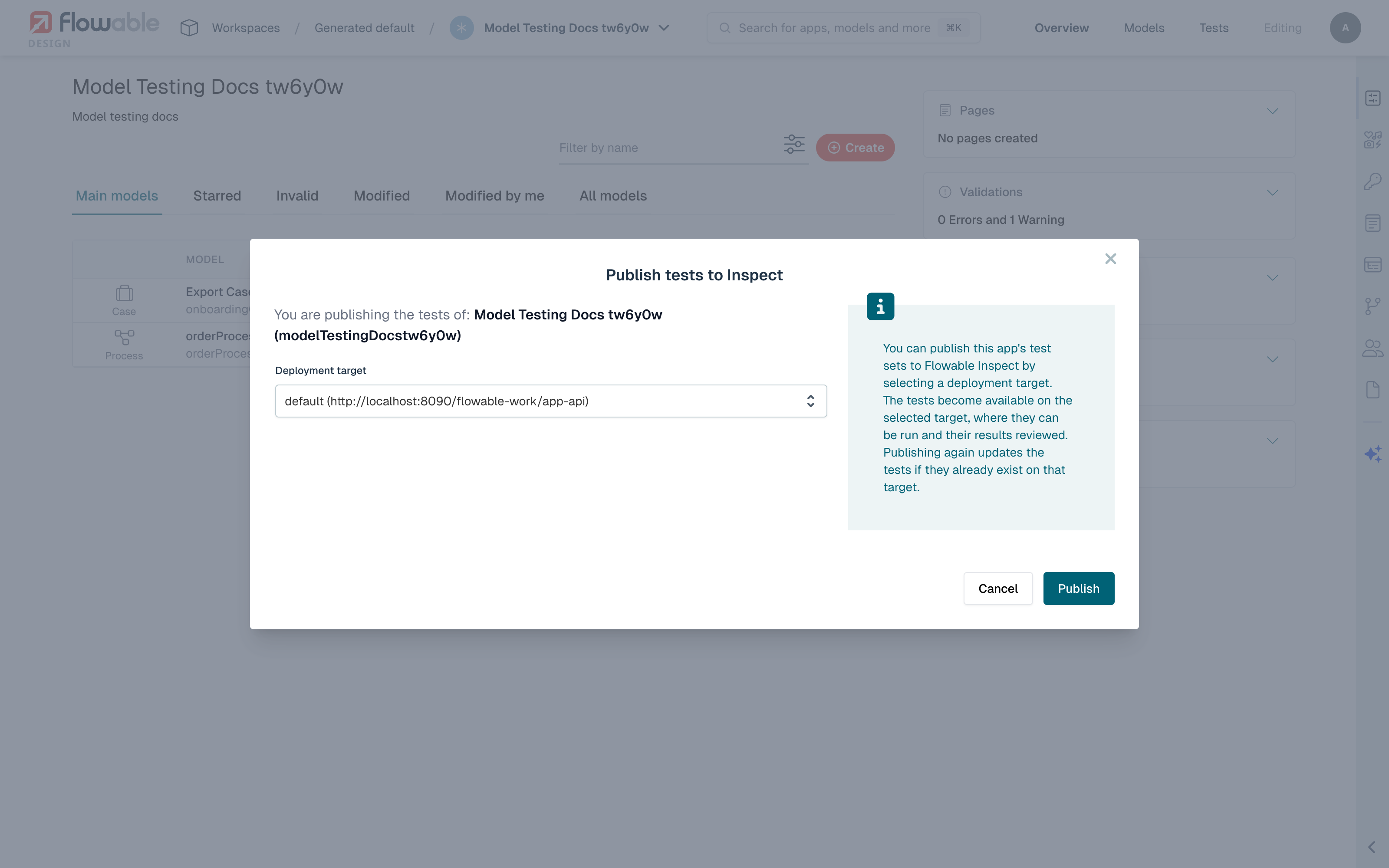
infoThe Publish Tests action is only available when the app contains at least one test set and when your user has permission to publish tests. Administrators can hide the action with the flowable.design.frontend.features.testPublish property.
Running tests in bulk
Running a test from the Design editor is ideal while authoring, but for repeatable, environment-level execution you run published tests from Flowable Inspect on Flowable Work — individually, or many at once as a bulk run.
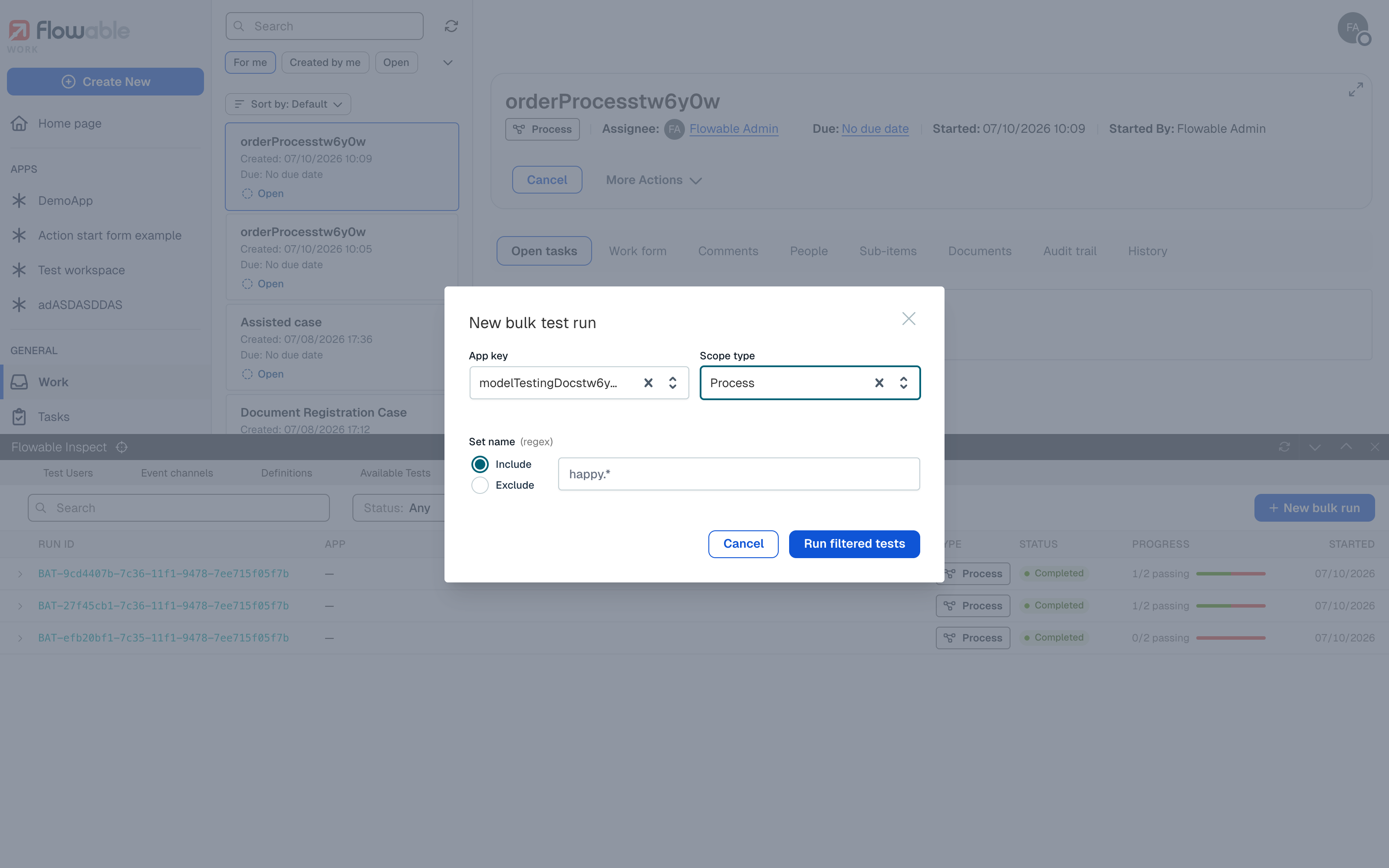
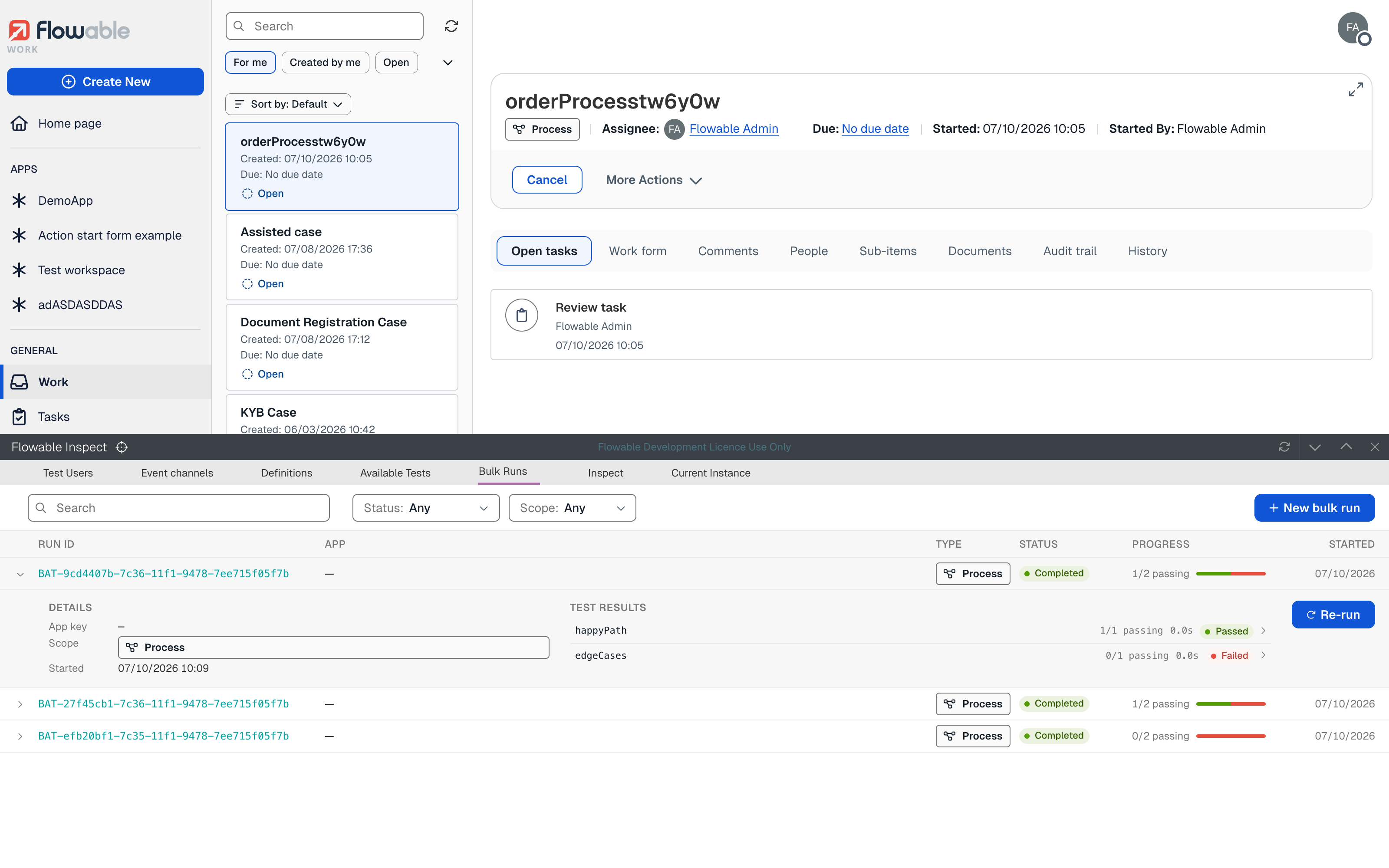
In Flowable Work, open Flowable Inspect and select the Bulk Runs tab. Choose New bulk run to open the New bulk test run dialog, where you pick which published tests to execute using a set of filters:
- App key — restrict the run to a single app, or leave it empty to include all apps.
- Scope type — restrict the run to a single model type: Process, Case, Service or Agent.
- Set name — include or exclude test sets whose name matches a regular expression, using the Include / Exclude toggle.
Choose Run filtered tests to start the run.
Each run appears in the Bulk Runs list with its Run ID, App, Type, Status, Progress and start time. The progress column shows how many of the run's tests have passed so far (for example 12/15 passing), and the list refreshes automatically while a run is in progress.
Expand a run to see its details and the per-test results — each test set with the number of tests passed, its duration and status. From there you can open an individual result in Inspect to see exactly what happened, or choose Re-run to execute the same selection again.
infoA bulk run executes the tests that were published to this Inspect environment, so remember to publish (or re-publish) an app's tests after changing them. The maximum time a run may stay in progress before it is forced to finish is controlled by flowable.inspect.max-test-run-duration (default one hour).
Test results and statuses
Whether a test runs from the editor, from a model's test tab, or as part of a bulk run, each test reports one of three outcomes:
- Passed — the test executed and all of its assertions held.
- Failed — the test executed but an assertion did not hold, or an error occurred. The failure detail shows the Expected and Actual values, together with a run log.
- Skipped — the test was intentionally excluded from the run.
The way results are displayed depends on the model type — canvas pins and a run-details panel for process and case models, a results table for service and agent models — and is described on each model-specific page.