Publishing Apps
Introduction
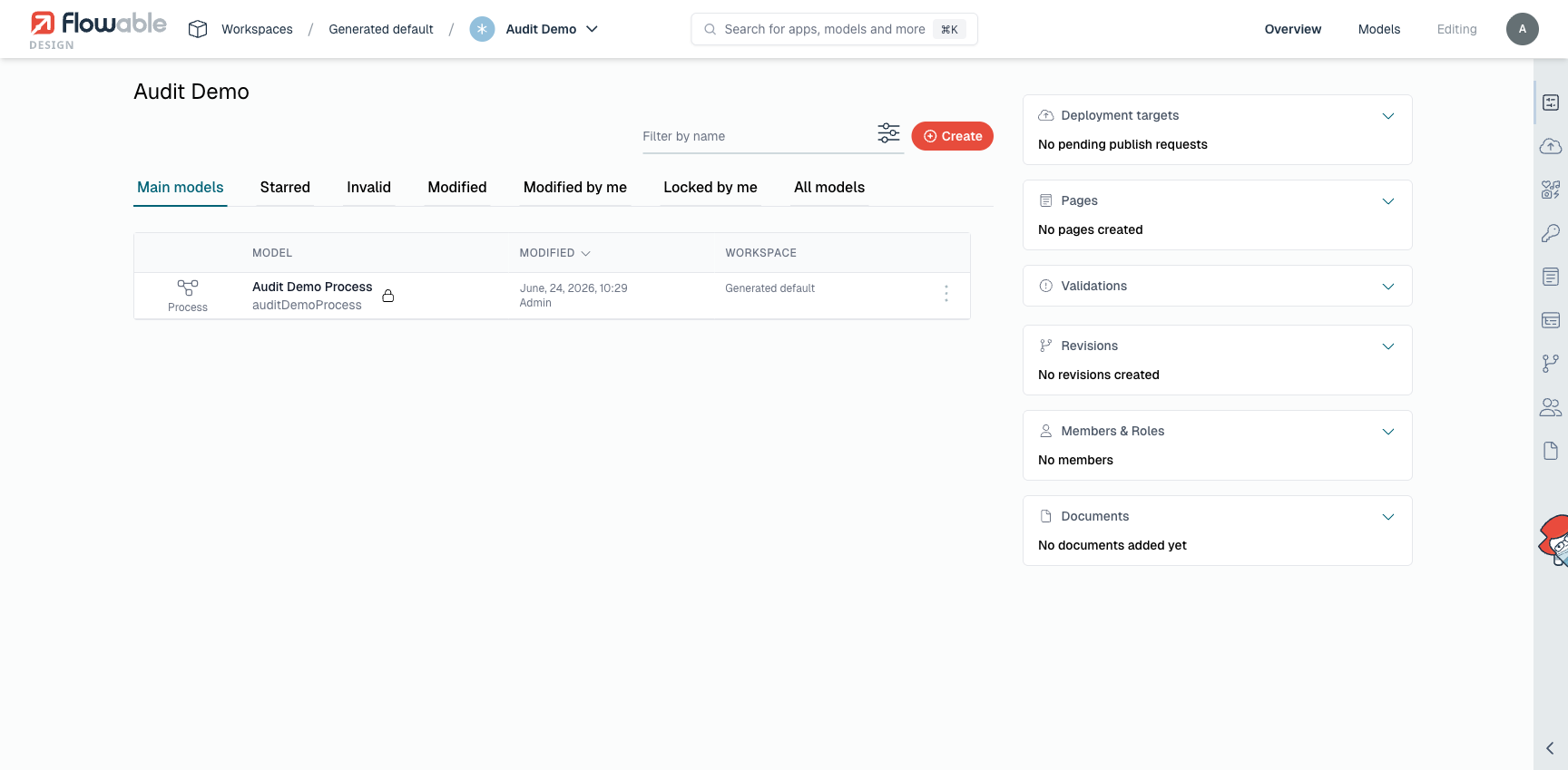
2026.1.0+An app is made available to a runtime system (such as Flowable Work) by publishing it. Each runtime an app can be published to is represented by a deployment target. The deployment targets configured for an app are shown on the app Overview page.
Depending on how a deployment target is configured, publishing is either direct or goes through a publish request that has to be approved first.
Deployment targets
A deployment target defines a runtime that an app can be published to. A target can be marked as requiring approval:
- Direct targets — publishing deploys the app to the runtime immediately.
- Targets that require a publish request — publishing creates a publish request that an approver must resolve before the app is deployed. These are intended for controlled environments (for example a production runtime), so that a reviewer signs off on every deployment.
Whether a target requires a publish request is configured with the publish-request-required property on the deployment target — see configuring deployment targets.
Publishing an app
When you publish an app you select the deployment target. The publish dialog then behaves differently depending on the target:
- For a direct target, the app is published right away. You can optionally also define a new revision while publishing (see Revisions).
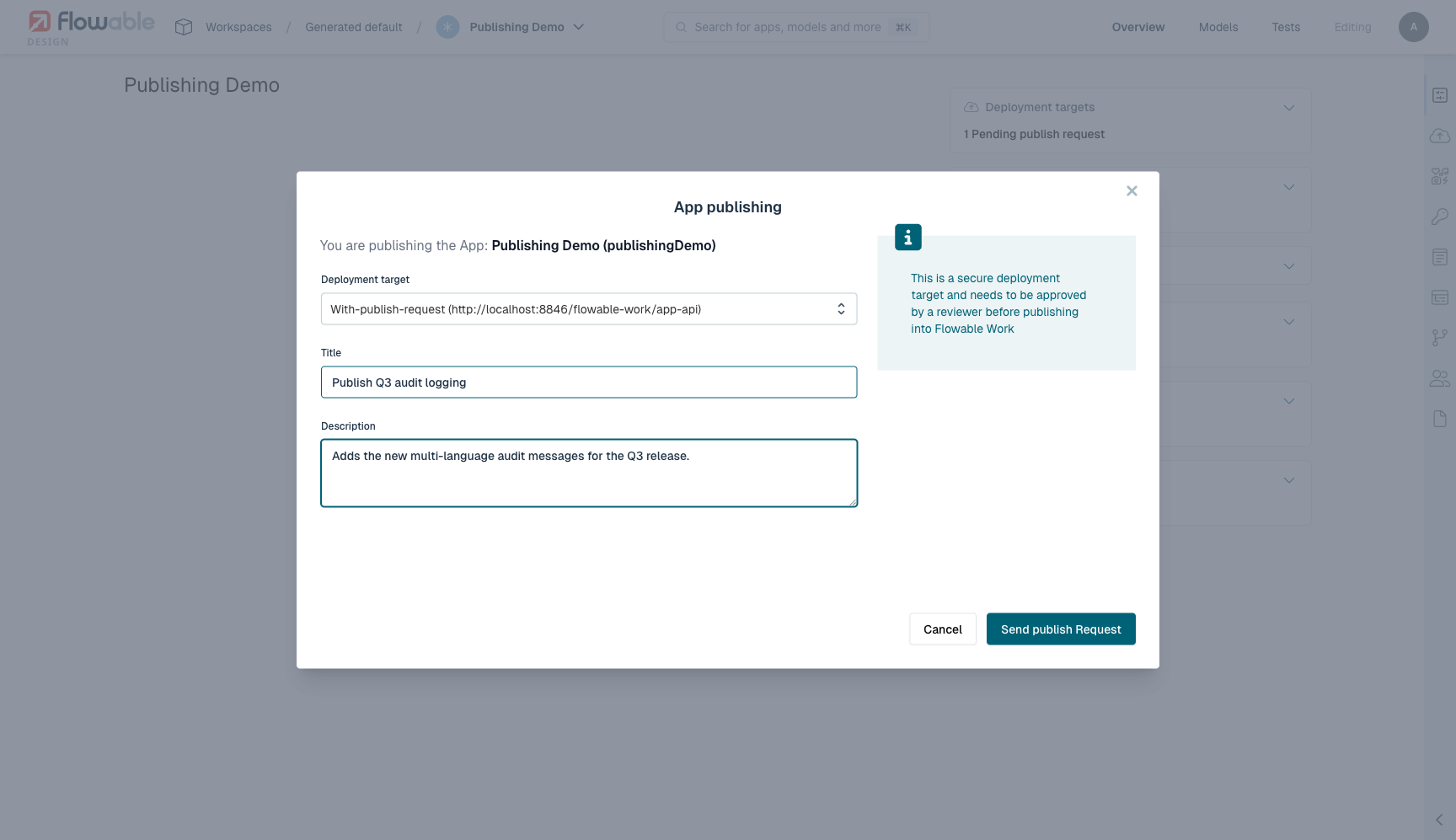
- For a target that requires a publish request, you provide a title and an optional description and send the request. The app is only deployed once the request is approved.
Publish requests
A publish request captures the intent to publish an app to a deployment target that requires approval. It records who requested the publish, the target, an optional revision, and the resolution.
Request lifecycle
A publish request is always in one of the following states:
- Pending — created and waiting to be resolved.
- Published — approved and the app was successfully deployed to the target.
- Rejected — the approver rejected the request.
- Failed — approved, but the deployment to the target failed (the error is shown on the request).
Only one pending request can exist per app and deployment target at a time. While a request is pending, you cannot send another one for that target — you can add comments to it, or create a new revision to save the current app version, until the pending request is resolved.
Approving or rejecting
An approver resolves a pending request:
- Approve — Flowable publishes the app to the target. On success the request becomes Published; if the deployment fails it becomes Failed. An optional message can be added.
- Reject — the request becomes Rejected, with an optional reason.
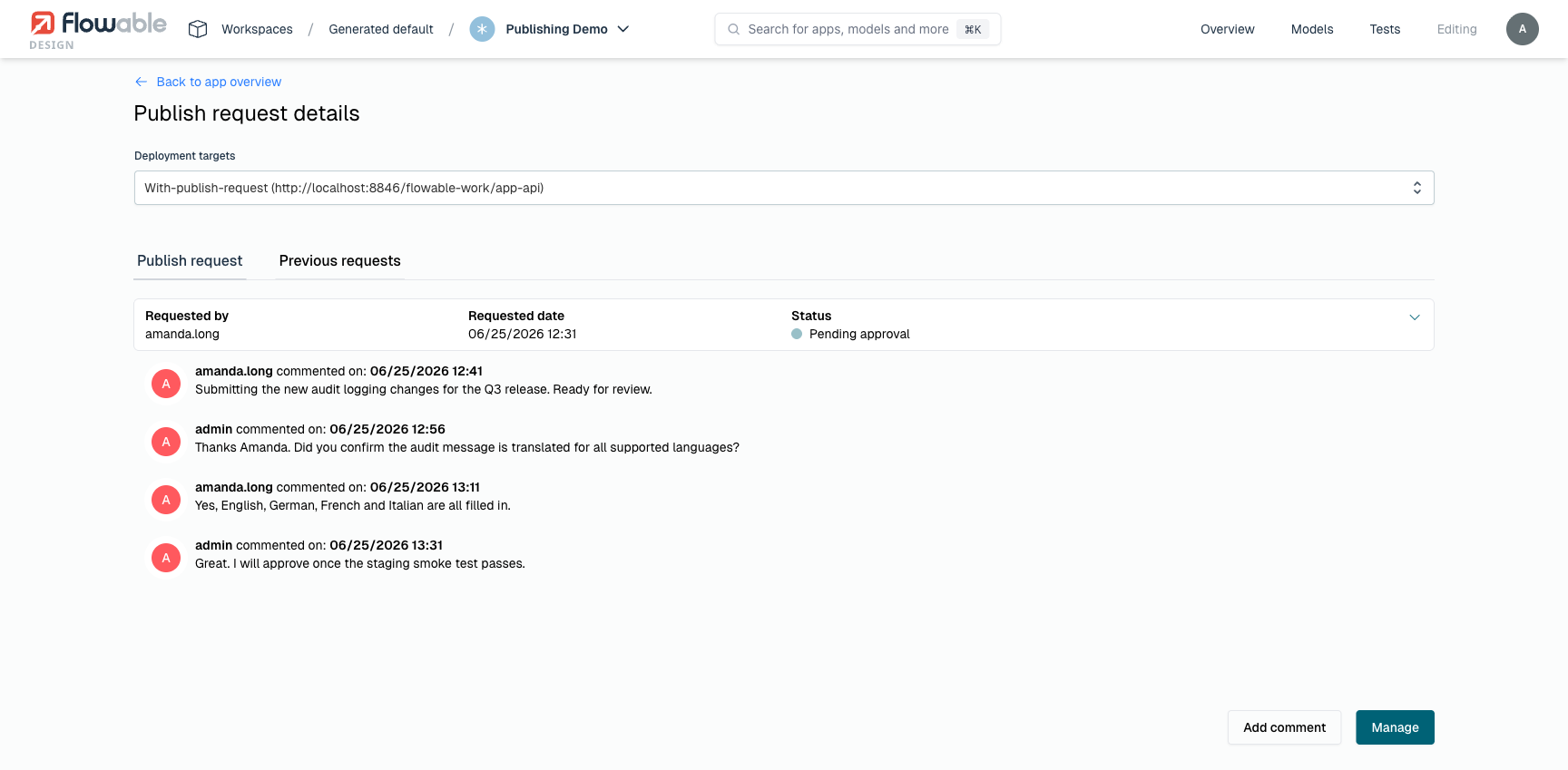
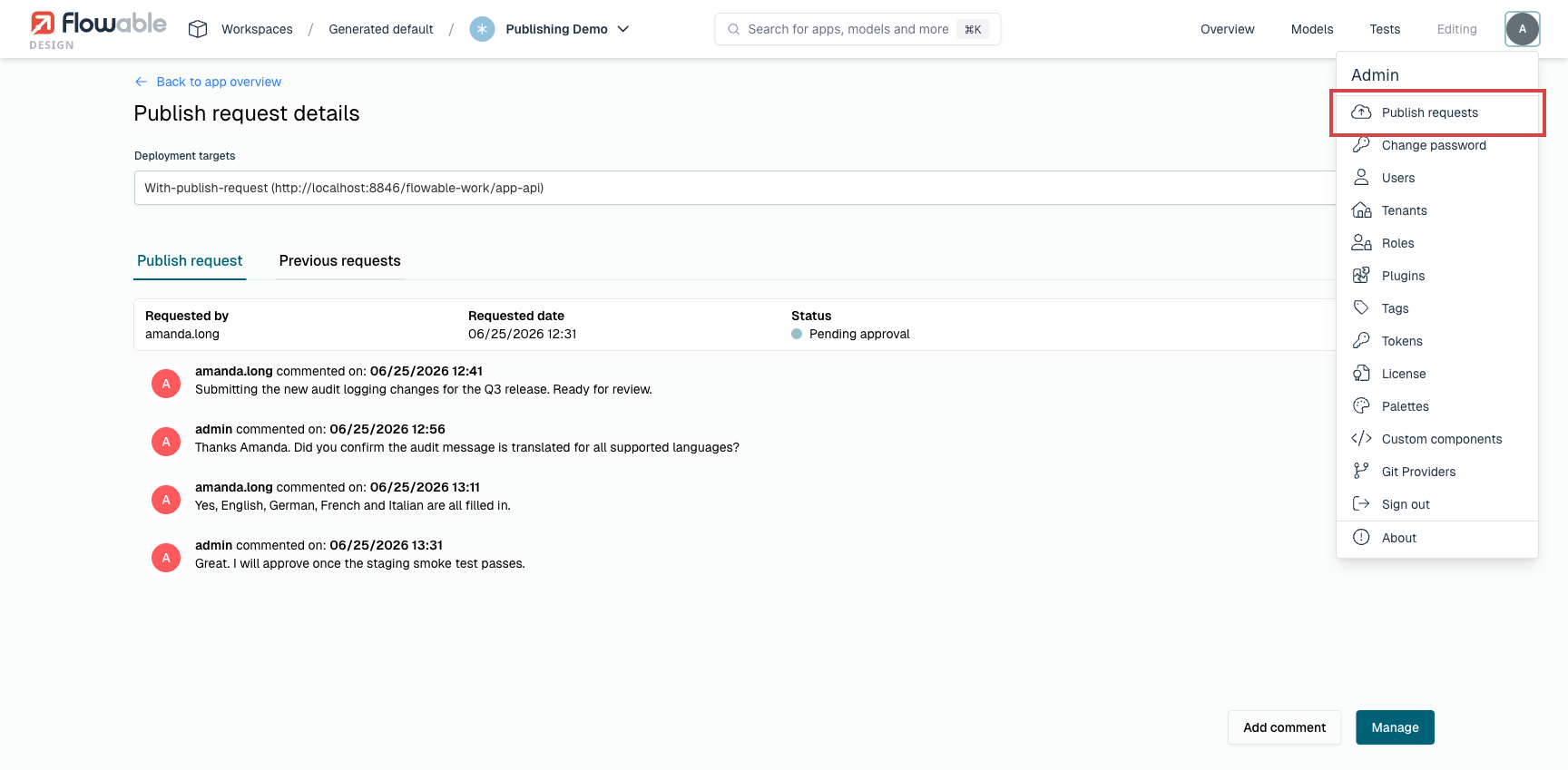
Approvers and requesters can also add comments to a request to discuss it before it is resolved. The request detail page shows the request, its status, and the full comment conversation.
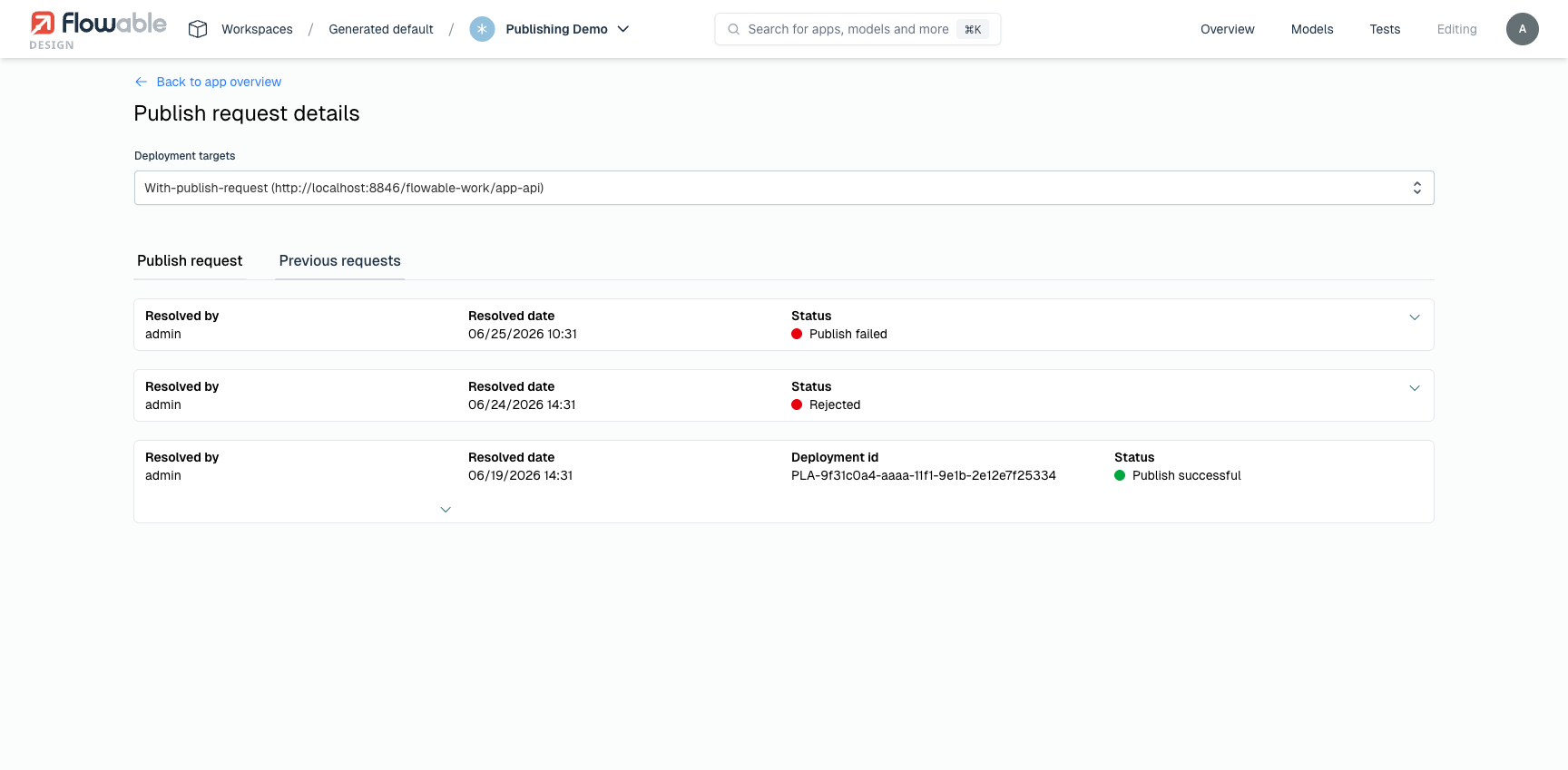
Resolved requests are listed under the Previous requests tab, each showing who resolved it, when, the resulting status (Published, Rejected or Failed) and — for a successful publish — the deployment id.
Where publish requests appear
- The app Overview page lists the deployment targets that require approval, with the number of pending requests and the latest status per target.
- The Publish requests entry in the profile menu opens a page that lists the pending requests across all apps you can act on, with a badge showing the pending count. Resolved requests are available under a Previous requests tab.
Permissions
Two app permissions control access to publish requests:
- View publish requests — see the requests of an app.
- Manage publish requests — resolve requests (approve or reject). This is the permission a user needs to approve a publish request.
The built-in Approver role grants both of these permissions, so assigning a user or group the Approver role on a workspace or app lets them resolve its publish requests (the Owner role has them as well). The same permissions can also be granted through a custom role.
Revisions
A revision is a saved snapshot of an app at a point in time. Revisions tie into publishing in two ways:
- When publishing to a direct target, you can choose to define a new revision at the same time.
- A publish request can reference the revision it publishes, and while a request is pending you can still create a new revision to save the current app version.
For how to create, revert, and otherwise manage revisions, see App Revisions.