MCP Configuration Examples
MCP (Model Context Protocol) is an open protocol that enables standardized communication between applications and AI tool servers. With MCP service definitions, you can connect to MCP-compatible servers and invoke tools exposed by those servers.
This page provides practical examples for configuring and using MCP services in Flowable Design.
Creating an MCP Service Definition
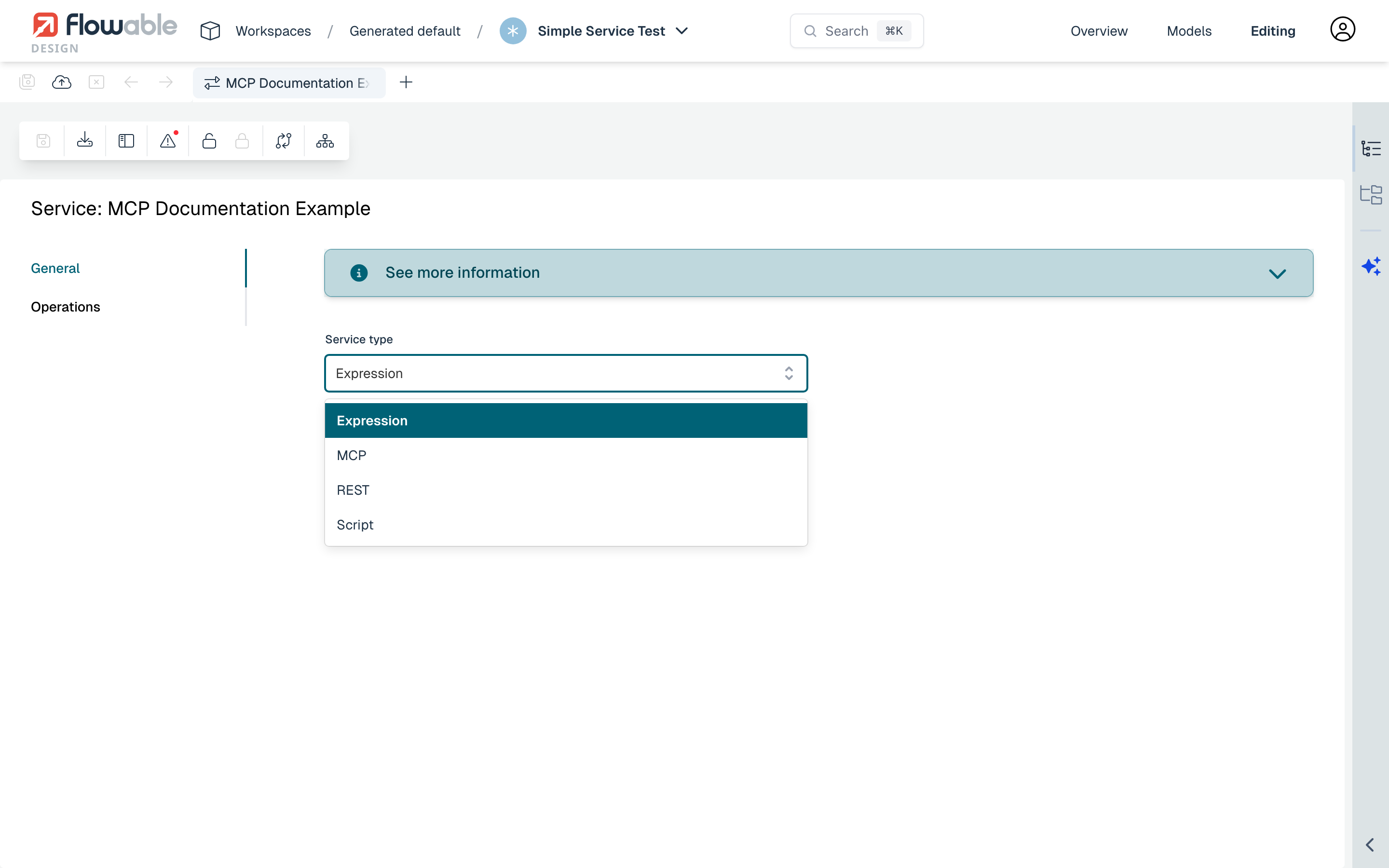
To create an MCP service, create a new service model in Flowable Design and select MCP as the service type.
Server URL
The Server URL is the endpoint of the MCP server. Flowable connects to the MCP server using the Streamable HTTP transport.
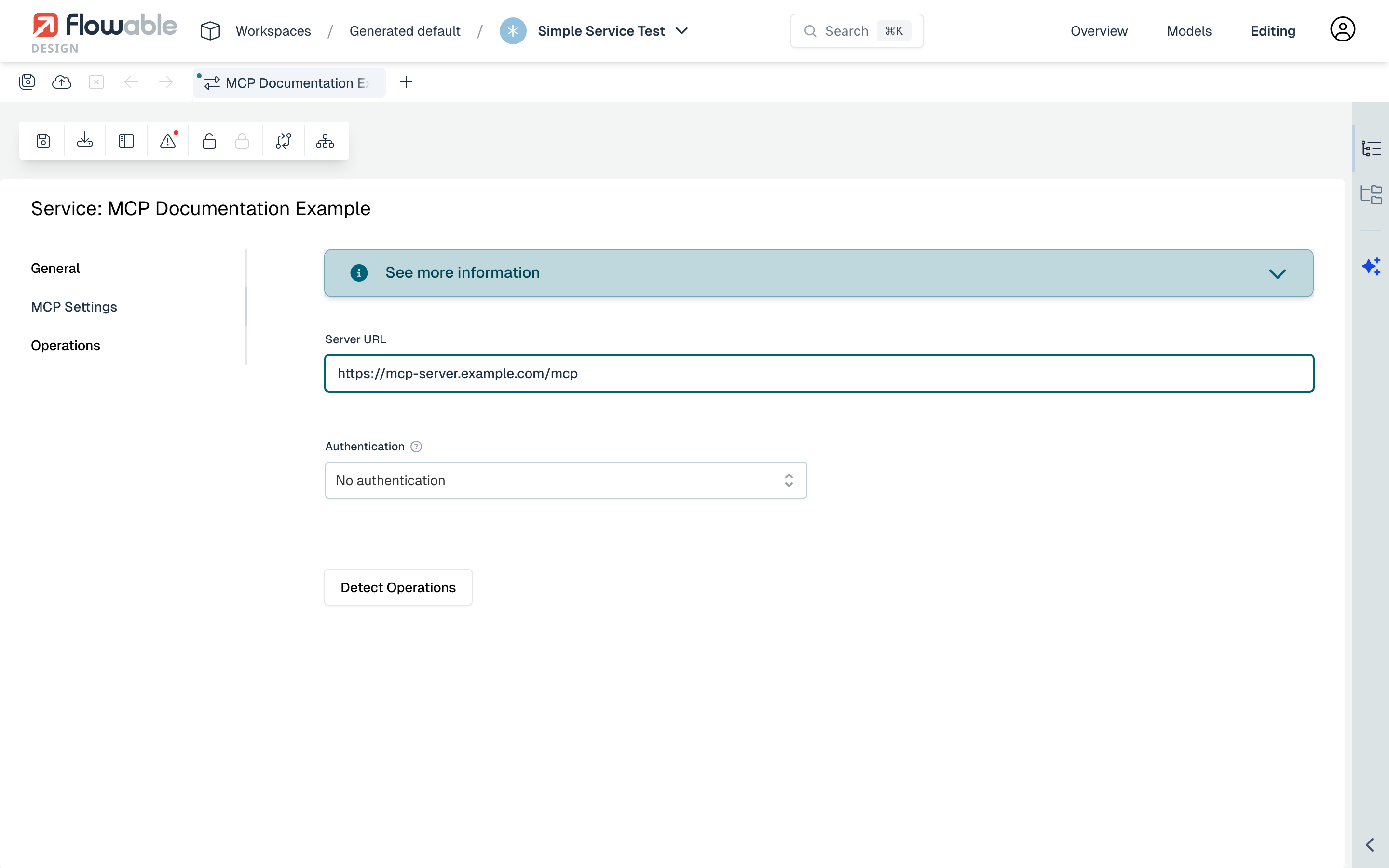
The URL can contain expressions that are resolved at runtime, for example:
${environment.getProperty('mcp.server.url')}
Tool Discovery
When flowable.design.service.mcp.discovery-enabled is set to true (the default), Flowable Design can auto-discover available tools from an MCP server.
This allows you to automatically create operations from the tools that the MCP server exposes.
To discover tools:
- Enter the Server URL of the MCP server.
- If the server requires authentication, configure the authentication settings (see Authentication Configuration below).
- Click the Detect Operations button.
- Design connects to the MCP server and lists the available tools.
- New operations are created from the discovered tools, including their input parameters.
 note
noteWhen tools are discovered, they are merged with any existing operations. Existing operations that match a discovered tool (by key) are updated with the latest parameter information. New tools are added as new operations.
Manually Configuring an MCP Operation
If you prefer to configure operations manually (or the MCP server is not available during modeling), you can add operations directly.
Operation Settings
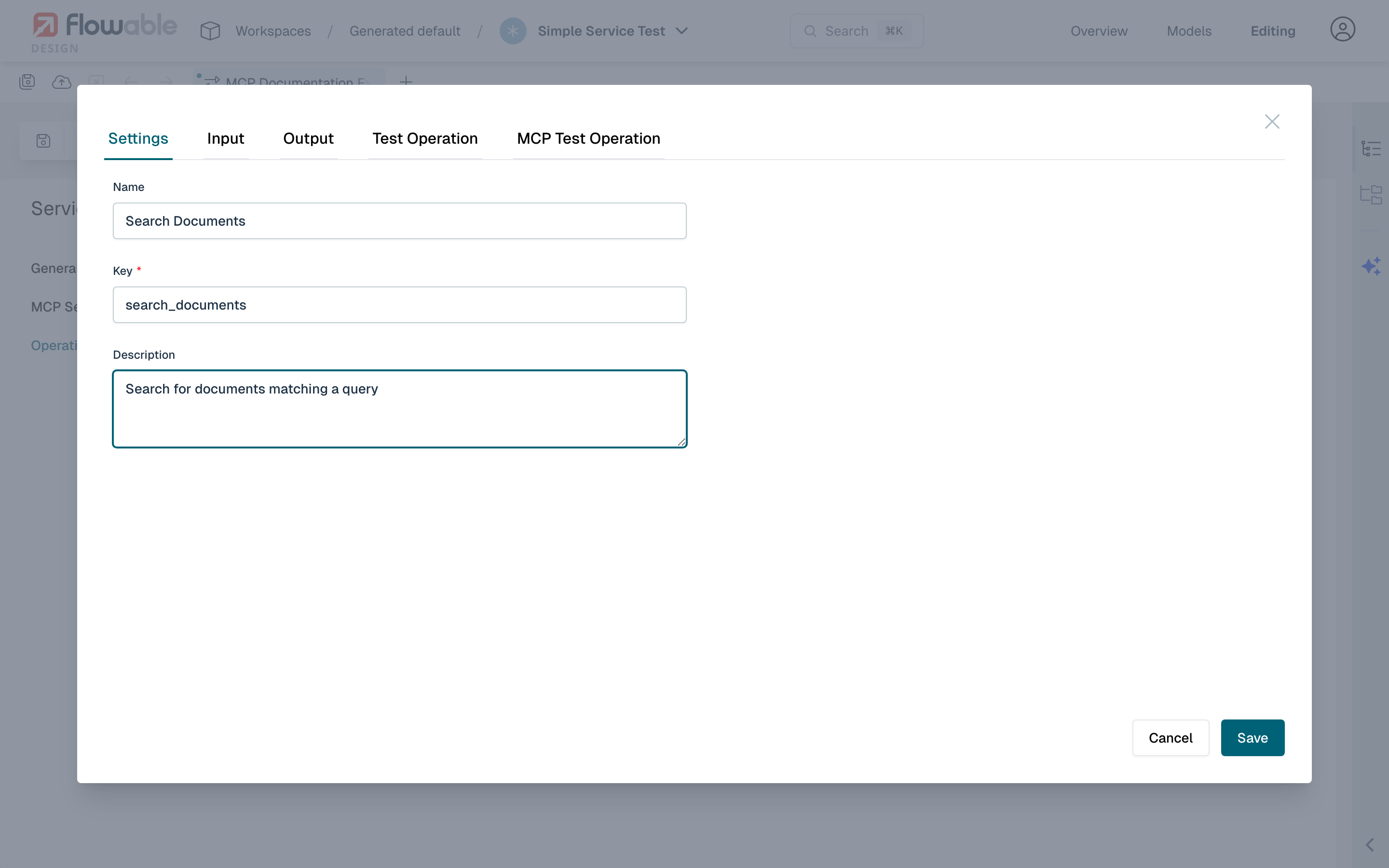
Each MCP operation maps to a tool on the MCP server:
- Name: A human-readable name for the operation.
- Key: The technical key that matches the tool name on the MCP server.
Input Parameters
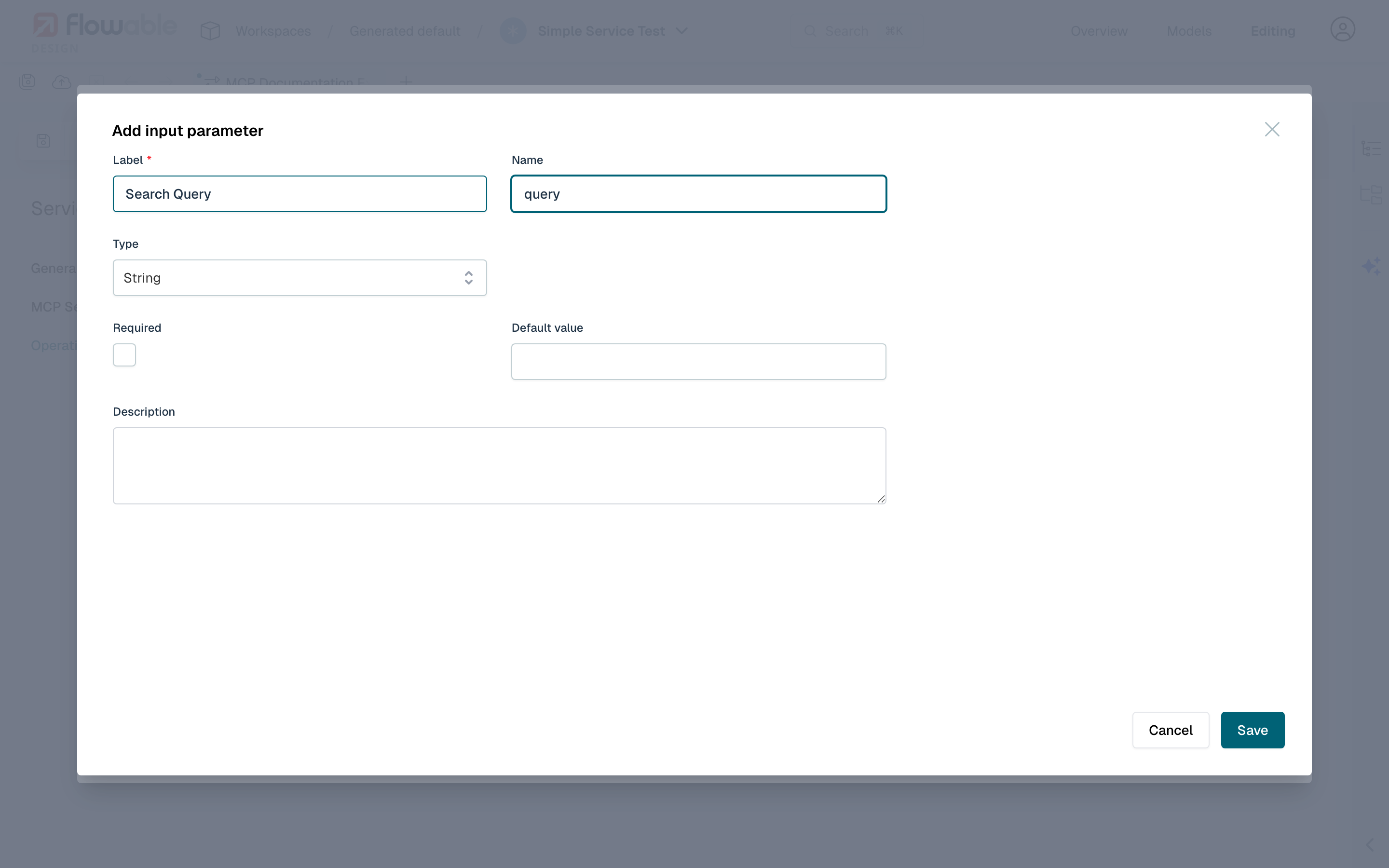
Input parameters define the arguments passed to the MCP tool. Configure each parameter with:
- Label: Human-readable name.
- Name: Technical name matching the tool's expected argument name.
- Type: The data type (String, Integer, Long, Double, Boolean, Date, JSON, Array).
- Required: Whether the argument is mandatory.
- Default Value: Optional default value or expression.
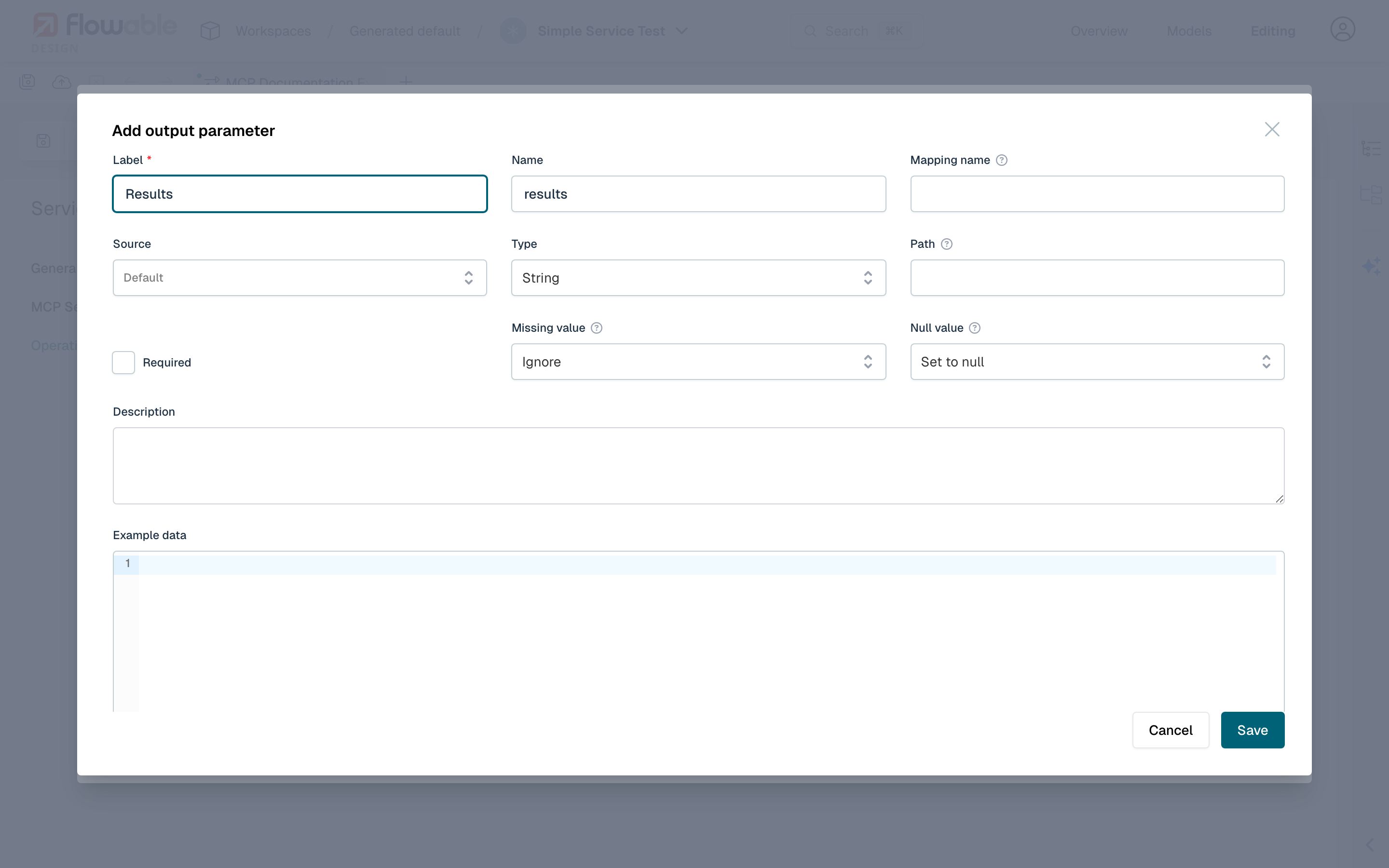
Output Parameters
Output parameters define how the MCP tool response is mapped back. MCP services provide specific output sources beyond the standard response body. See the MCP Parameters Reference for full details on available sources.
Authentication Configuration
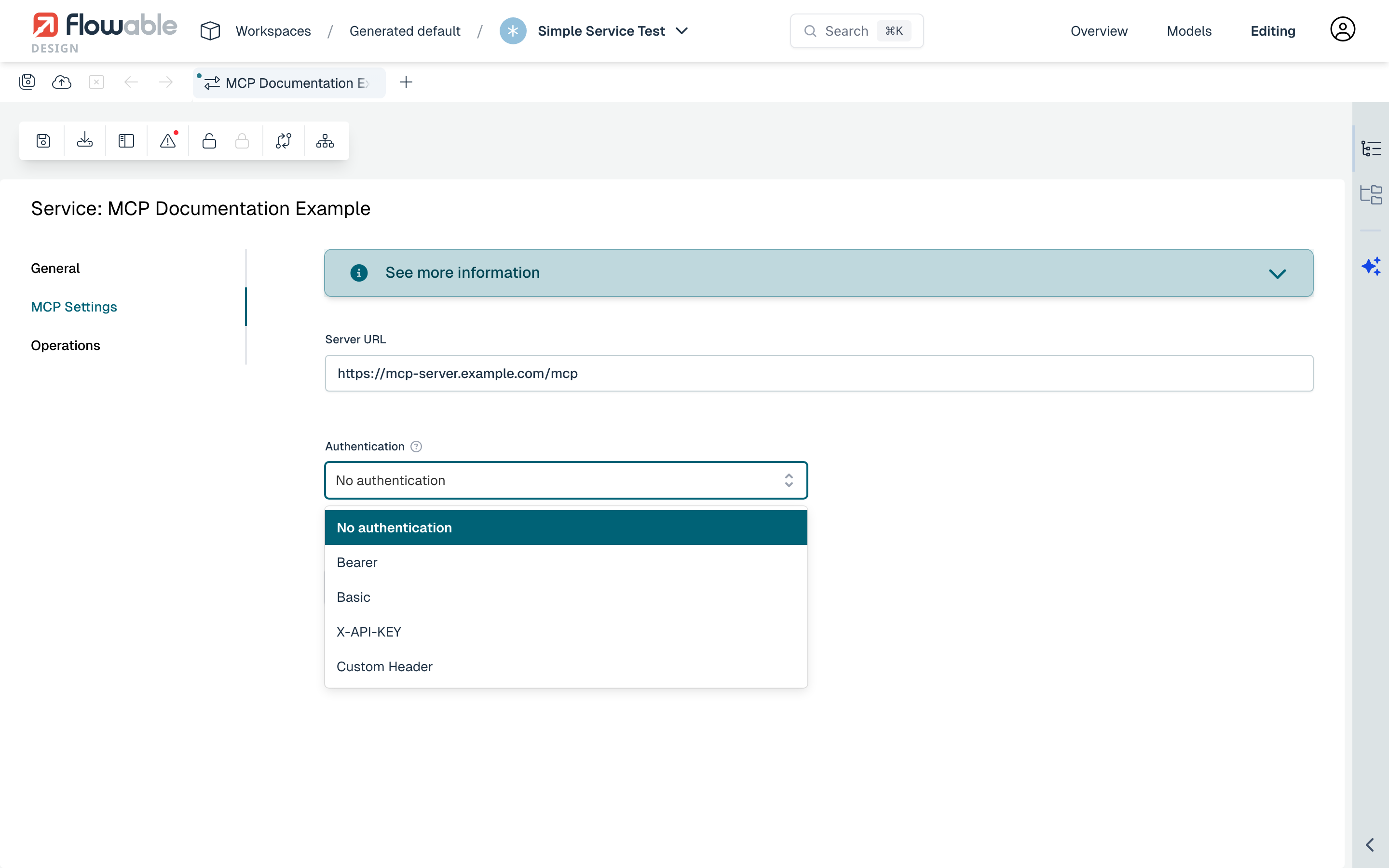
MCP services support multiple authentication types for connecting to protected MCP servers. The authentication is configured at the service definition level and applies to all operations.
None
No authentication headers are sent. This is the default when no authentication is configured.
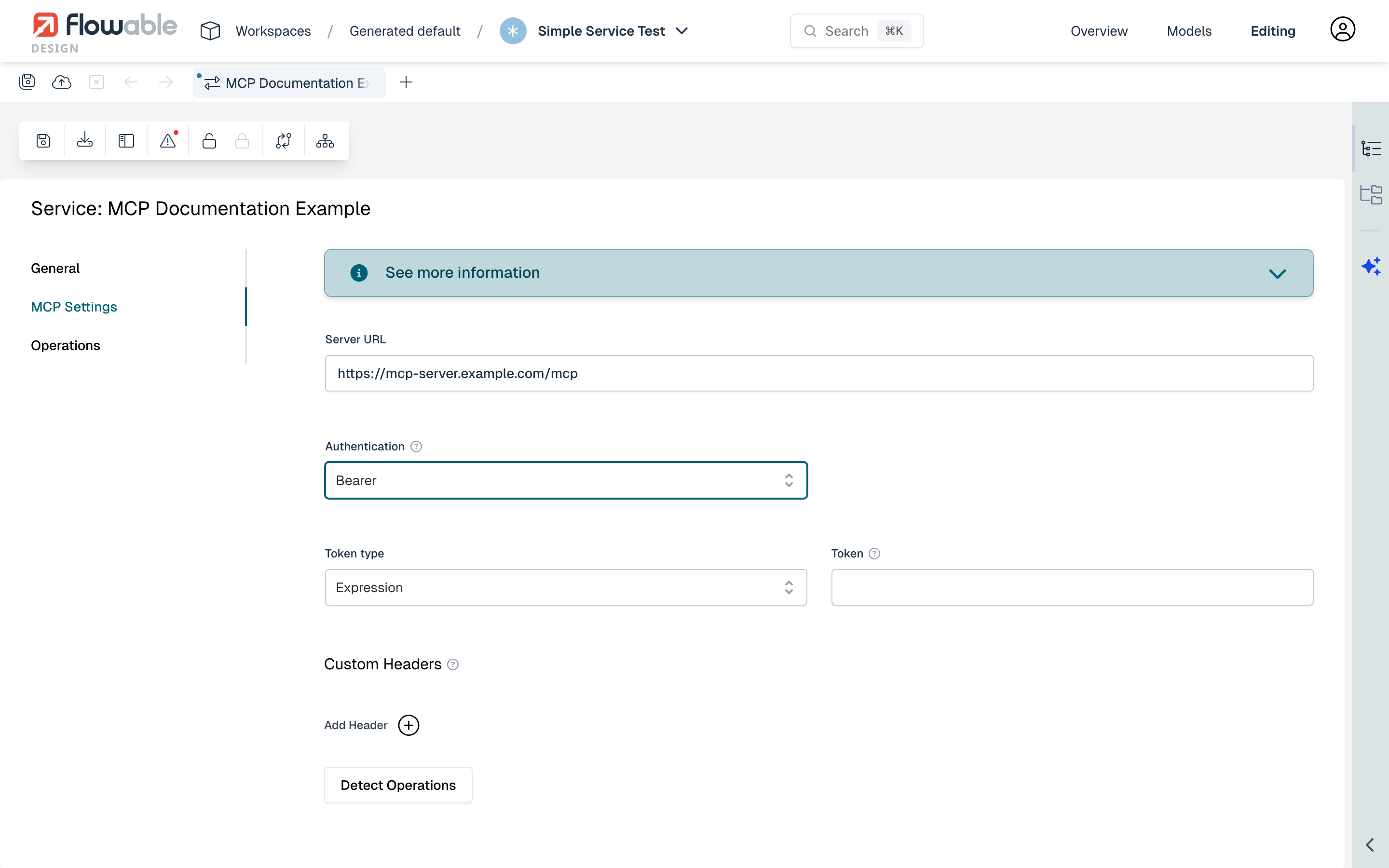
Bearer Authentication
Sends an Authorization: Bearer <token> header with each request to the MCP server.
The token value can be sourced from:
- Expression: A JUEL expression resolved at runtime (e.g.,
${environment.getProperty('mcp.bearer-token')}). - Secret: A reference to a Flowable secret stored in the platform (by secret name).
- OAuth2 Client: Uses an OAuth2 client credentials flow to obtain a token (by OAuth2 client registration key).
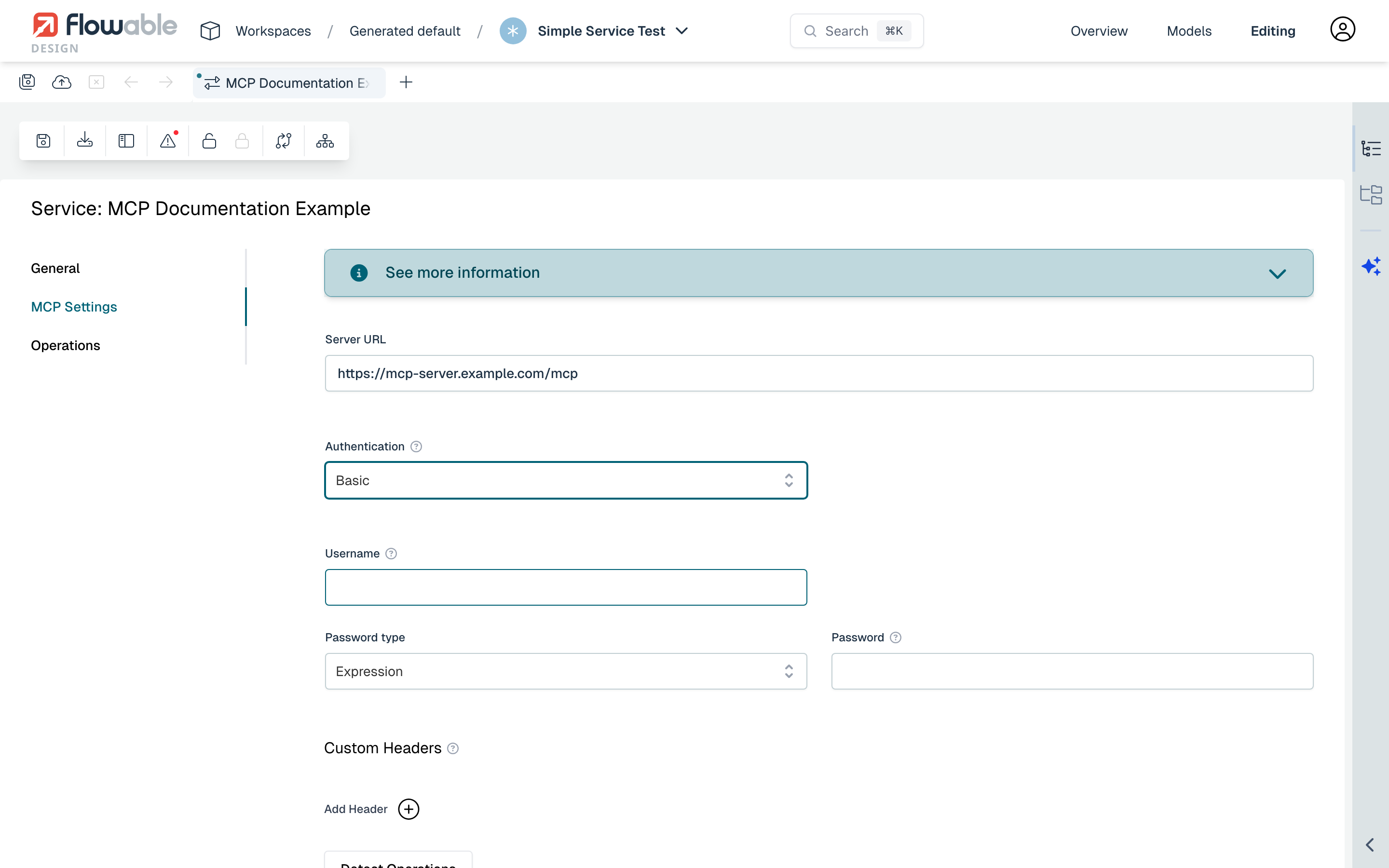
Basic Authentication
Sends an Authorization: Basic <base64(username:password)> header. Flowable automatically handles the Base64 encoding.
- Username: A value or expression for the username.
- Password: Can be sourced from an expression or a secret.
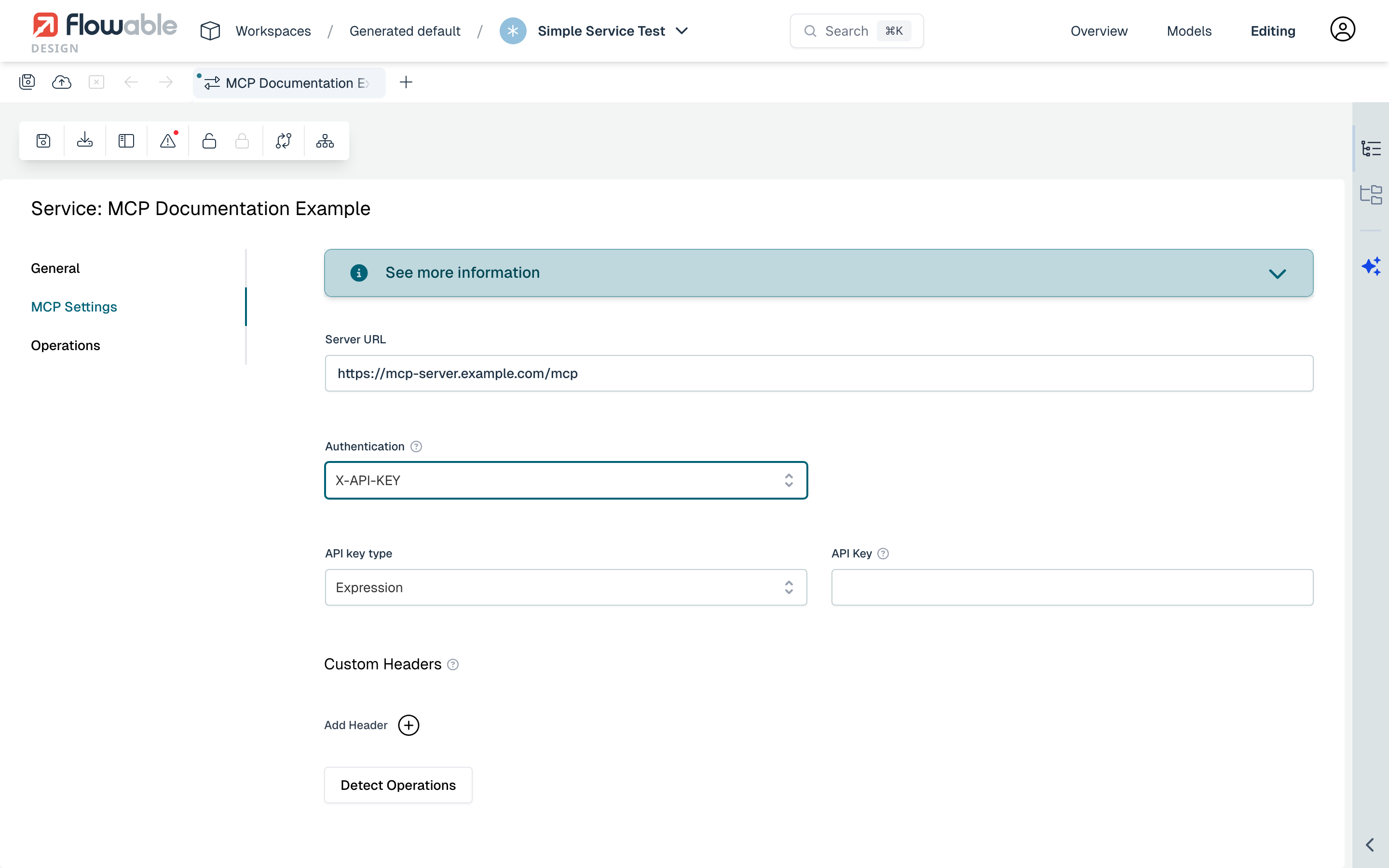
API Key Authentication
Sends an X-API-KEY: <key> header.
The key value can be sourced from:
- Expression: A JUEL expression resolved at runtime.
- Secret: A reference to a Flowable secret.
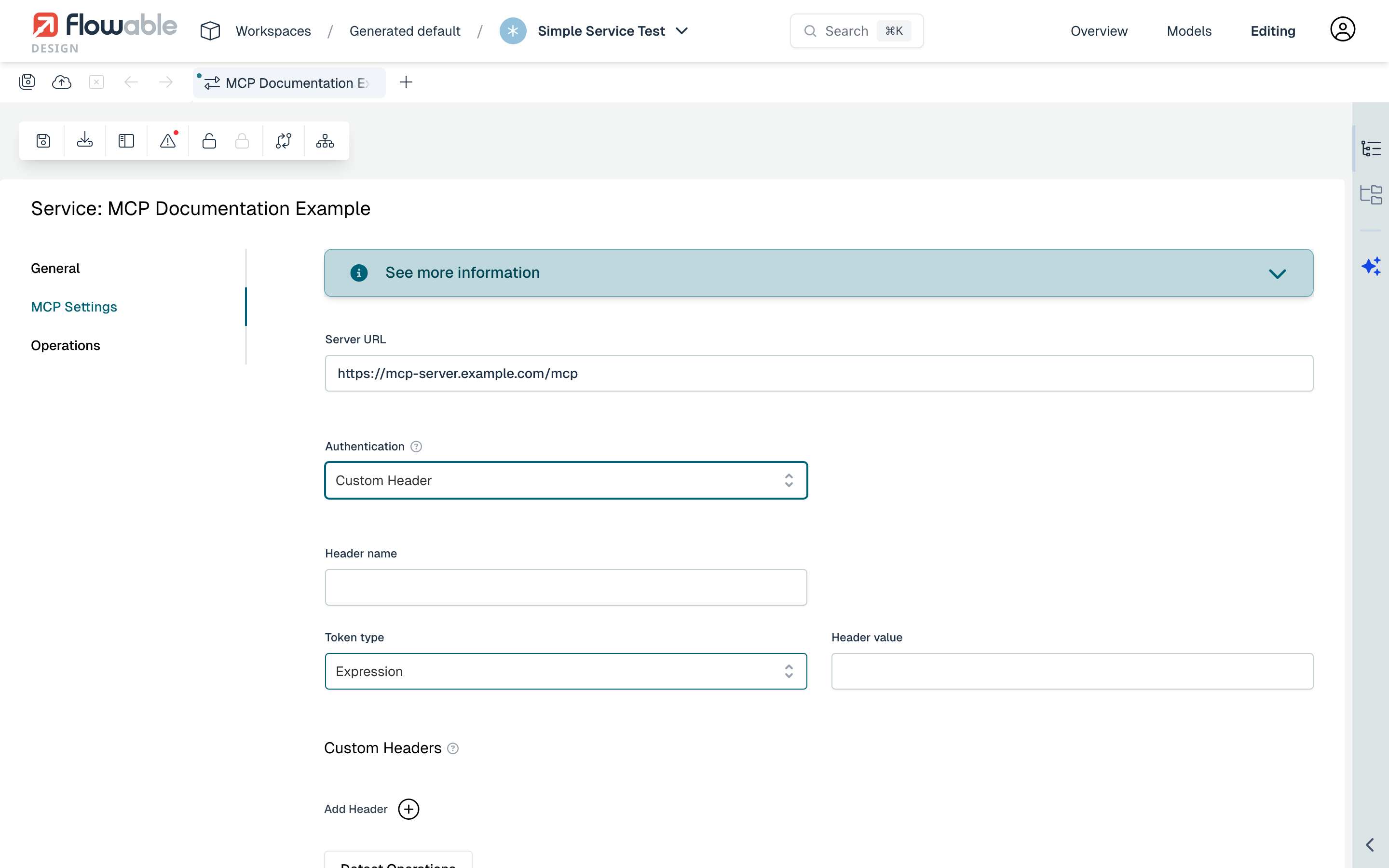
Custom Header Authentication
Sends a custom header with a configurable name and value. This is useful when the MCP server expects a non-standard authentication header.
- Header Name: The name of the custom header.
- Header Value: Can be sourced from an expression, a secret, or an OAuth2 client.
Custom Headers for Discovery
When authentication is configured and you use tool discovery, you can also configure additional custom headers that are sent during the discovery request. This allows passing extra headers required by the MCP server during the tool listing phase.
noteCustom headers for discovery are kept in memory only and are not persisted as part of the service definition. If you refresh the page, they will be removed.
JSON Representation
Below is a complete example of an MCP service definition in JSON format:
Complete MCP service definition with operations
{
  "name": "Document Tools",
  "key": "documentTools",
  "type": "mcp",
  "config": {
    "url": "https://mcp-server.example.com/mcp",
    "authentication": {
      "type": "bearer",
      "token": {
        "type": "secret",
        "value": "myMcpBearerTokenSecret"
      }
    }
  },
  "operations": [
    {
      "name": "Search Documents",
      "key": "search_documents",
      "inputParameters": [
        {
          "required": true,
          "displayName": "Search Query",
          "name": "query",
          "type": "string"
        },
        {
          "required": false,
          "displayName": "Max Results",
          "name": "maxResults",
          "type": "integer",
          "defaultValue": "10"
        }
      ],
      "outputParameters": [
        {
          "displayName": "Results",
          "name": "results",
          "type": "json",
          "source": "mcpStructuredContent"
        },
        {
          "displayName": "Summary",
          "name": "summary",
          "type": "string",
          "source": "mcpTextContent"
        }
      ]
    }
  ]
}
Authentication Variants
Here are JSON examples for each authentication type:
Basic Authentication with expressions
{
  "config": {
    "url": "https://mcp-server.example.com/mcp",
    "authentication": {
      "type": "basic",
      "username": "${environment.getProperty('mcp.username')}",
      "password": {
        "type": "expression",
        "value": "${environment.getProperty('mcp.password')}"
      }
    }
  }
}
Basic Authentication with a secret
{
  "config": {
    "url": "https://mcp-server.example.com/mcp",
    "authentication": {
      "type": "basic",
      "username": "myUser",
      "password": {
        "type": "secret",
        "value": "myPasswordSecret"
      }
    }
  }
}
API Key Authentication
{
  "config": {
    "url": "https://mcp-server.example.com/mcp",
    "authentication": {
      "type": "apiKey",
      "key": {
        "type": "secret",
        "value": "myApiKeySecret"
      }
    }
  }
}
Custom Header Authentication with OAuth2 client
{
  "config": {
    "url": "https://mcp-server.example.com/mcp",
    "authentication": {
      "type": "header",
      "name": "X-Custom-Auth",
      "value": {
        "type": "oauth2Client",
        "value": "myOAuth2RegistrationKey"
      }
    }
  }
}
Using an MCP Service in a Process or Case
Using an MCP service in a BPMN process or CMMN case works the same way as any other service type. Drag a Service Registry Task onto the canvas and select the MCP service model and the desired operation.
The input and output parameter mappings follow the same patterns described in the Parameter Mappings documentation.
Using an MCP Service as a Tool in an AI Agent
MCP service operations can be used as tools in an AI Agent model. This allows an LLM to invoke MCP tools directly as part of an agent interaction.
To add an MCP service as a tool:
- Open an agent model in Flowable Design.
- Add a tool at the operation level or at the agent level.
- Select the MCP service model and the desired operation.
When the LLM determines that the tool is needed during an agent interaction, it invokes the MCP operation with the required parameters. The MCP tool executes on the remote server and the result is returned to the LLM, which incorporates it into its response.